Do you want Google Chrome to automatically open a specific website or multiple websites every time you launch it? 🌐 Chrome’s startup settings let you choose exactly what happens when you open the browser.
In this tutorial, I’ll show you how to set up startup pages in Google Chrome, including how to open one specific website, automatically open multiple websites, use your currently open pages, and remove a startup page you no longer want.
Watch the video tutorial:
https://youtu.be/WqSbyh_6HYE
How to Set Startup Pages in Google Chrome
If you want multiple websites to open automatically, an easy way to get started is to open those websites in Chrome first.
Click the plus sign (+) at the top of Chrome to open a new tab, then visit each website you want Chrome to open.
Once you have all of your websites open in separate tabs, you’re ready to change your startup settings.
Step 1: Open Google Chrome Settings
Head to the top-right corner of Google Chrome and click the three dots.
From the menu, select Settings.
Step 2: Select On Startup
Once Chrome Settings opens, look at the options on the left-hand side.
Select On startup.
You’ll now see three different options for what Chrome can do when you launch the browser:
- Open the New Tab page
- Continue where you left off
- Open a specific page or set of pages
The Open the New Tab page option gives you a brand-new page every time you open Google Chrome.
Continue where you left off can be handy if you want to return to where you were working or the websites you were using before.
For this tutorial, we’re going to select Open a specific page or set of pages.
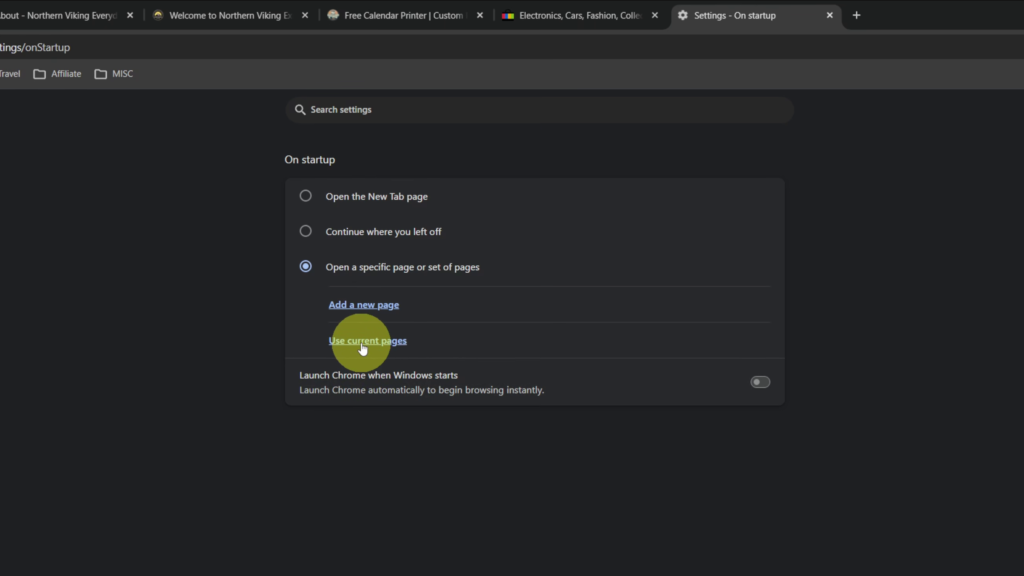
Step 3: Add a Specific Startup Page
Once Open a specific page or set of pages is selected, you’ll see a couple of different options.
The first is Add a new page.
Select Add a new page, then enter the website you want Chrome to open automatically.
In the video, I use lego.com as an example.
Enter the website and select Add.
Now, when you open Google Chrome, it will automatically open that website.
If you decide you no longer want that page to open when Chrome starts, click the three dots beside it and remove it.
Step 4: Use Your Currently Open Pages
Chrome also gives you a quick way to add multiple startup pages at once.
Before doing this, open all the websites you want in separate Chrome tabs.
Then return to:
Settings > On startup > Open a specific page or set of pages
Select Use current pages.
Chrome will add the pages you currently have open to your startup list. This is an easy way to set up several websites without entering each address individually. 💻
Step 5: Test Your Chrome Startup Pages
Once you’ve added your startup pages, close Google Chrome.
Now open Chrome again.
As I demonstrate in the video, all of the websites you added should automatically open in separate tabs when Chrome launches. ✅
And really, it’s that simple to have Google Chrome automatically open a specific webpage or multiple webpages on startup.
Which Chrome Startup Option Should You Use?
Chrome gives you three choices, so you can choose whichever setup works best for you.
Open the New Tab page starts Chrome with a new page each time.
Continue where you left off returns you to the websites you were using before.
Open a specific page or set of pages lets you choose exactly which websites should automatically open each time you launch Chrome.
If you regularly open the same websites every time you use Chrome, the third option gives you an easy way to have them ready as soon as the browser opens.
Watch the Full Tutorial 🎥
How to Set Startup Pages in Google Chrome
https://youtu.be/WqSbyh_6HYE
Related Google Chrome Tutorials 💻
How to Turn On Vertical Tabs in Google Chrome
https://northernvikingeveryday.com/turn-on-vertical-tabs-google-chrome/
How to Save a Webpage as a PDF in Google Chrome
https://northernvikingeveryday.com/save-webpage-as-pdf-google-chrome/
How to Add a Google Translate Button to Your Chrome Toolbar
https://northernvikingeveryday.com/how-to-add-google-translate-button-chrome/
How to Search Any Image in Chrome with the Google Lens Shortcut
https://northernvikingeveryday.com/how-to-enable-google-lens-chrome-toolbar/