Is the Dock on your Mac taking up too much space on your screen? You can set your Mac to automatically hide the Dock when you’re not using it and have it reappear whenever you need it.
In this quick tutorial, I’ll show you how to turn on Automatically hide and show the Dock on your Mac.
Watch the video tutorial:
https://youtu.be/NCgfIzemcOY
How to Automatically Hide the Dock on Mac
Step 1: Open System Settings
From your Mac desktop, click the Apple icon in the top-left corner of the screen.
Select System Settings from the menu.
Step 2: Open Desktop & Dock
Once System Settings opens, look through the options on the left-hand side and select Desktop & Dock.
You’ll now see the different settings available for customizing your Mac’s Dock.
Step 3: Turn On Automatically Hide and Show the Dock
Find the option labeled Automatically hide and show the Dock.
You’ll see a toggle switch beside it. Click the toggle to turn the setting on.
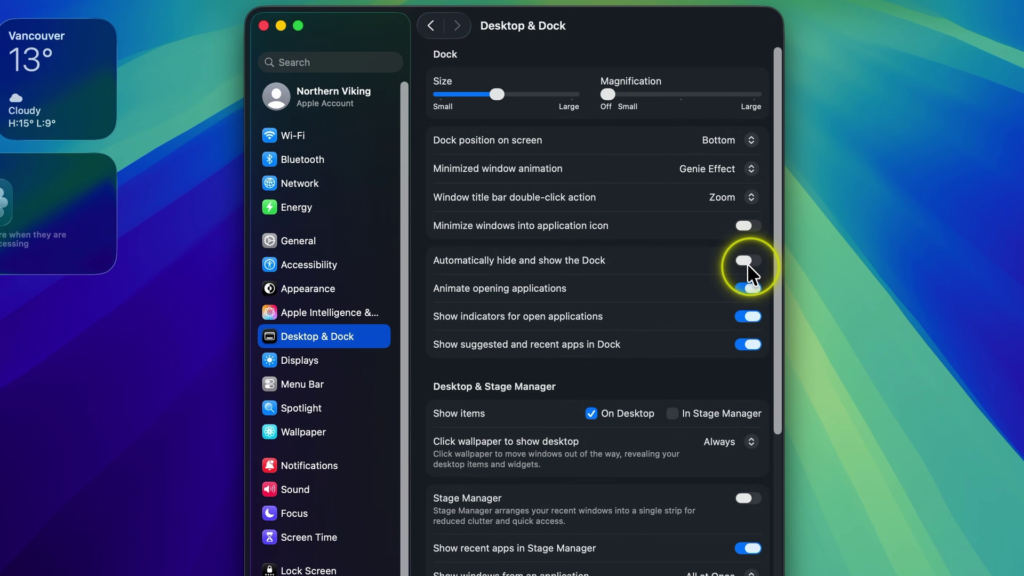
Once you turn the setting on, you’ll notice that the Dock disappears from the bottom of your screen.
How to Access the Dock When It’s Hidden
Even though the Dock is hidden, you can quickly bring it back whenever you need it.
Move your mouse cursor to the bottom edge of the screen and the Dock will pop back up. You can then access your apps as usual.
When you move your cursor away from the Dock, it will automatically disappear again.
This is a quick and easy way to keep your Dock accessible while opening up a little extra space on your Mac desktop.
Related Mac Tutorials 💻
How to Make Text Bigger on Mac
https://northernvikingeveryday.com/make-text-bigger-mac/
How to Change Your Homepage in Safari on Mac
https://northernvikingeveryday.com/change-homepage-safari/
How to Show File Extensions on Mac
https://northernvikingeveryday.com/show-file-extensions-mac/
How to Open the Emoji Keyboard on Mac
https://northernvikingeveryday.com/open-emoji-keyboard-mac/