If you just picked up the new DJI Osmo Action 6, you are probably blown away by the image quality right out of the box. 🤯 But did you know there is a hidden setting that can make your footage look even better?
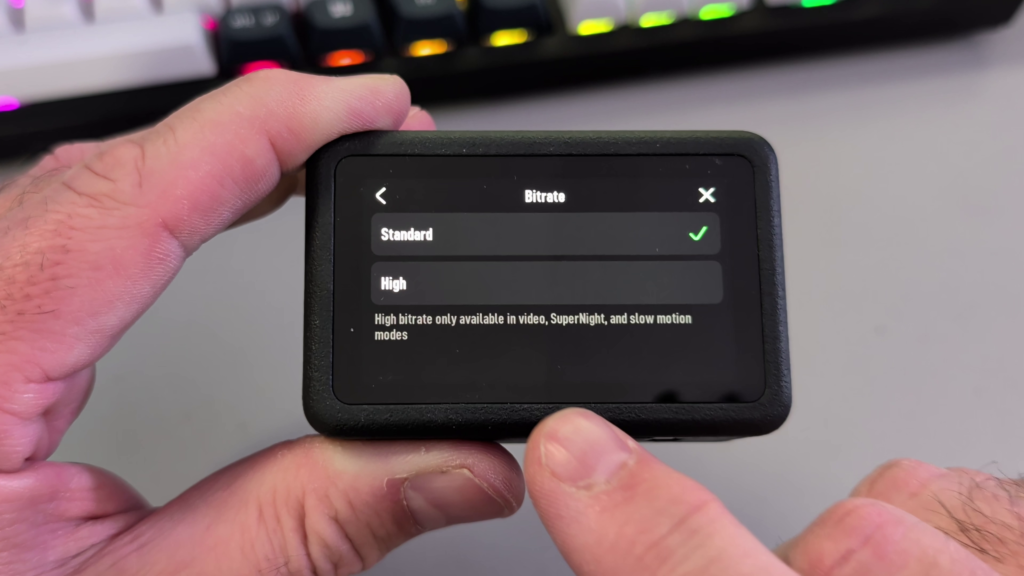
By default, the camera might be set to “Standard” bitrate to save space on your memory card. However, if you want the crispest, most detailed video possible, especially for fast-moving action scenes, you need to enable High Bitrate. 🚀
In my latest video, I walk you through exactly how to find this setting and turn it on in seconds. ⏱️
Watch the Full Tutorial Here: https://youtu.be/CkPf8YBQ2OQ
🤔 Why Does High Bitrate Matter?
In simple terms, Bitrate is the amount of data your camera uses to record each second of video.
- 📉 Standard Bitrate: Compresses the video more to create smaller file sizes. This is fine for casual clips, but you might lose some detail.
- 📈 High Bitrate: Uses less compression, preserving more data and detail. This results in larger files, but professional-looking quality with fewer artifacts.
📝 How to Enable High Bitrate on DJI Osmo Action 6
If you prefer a quick text guide, here is how you do it:
- 👇 Swipe Down from the top of the main screen to access the Control Menu.
- ⚙️ Tap on the Settings (Gear Icon).
- 📜 Scroll down the list until you see “Bitrate”.
- ✅ Tap it and switch the checkmark from Standard to High.
It is that simple! Now your camera is optimized to capture the highest quality footage possible. 🎬
🎒 DJI Gear (Affiliate)
If you are looking to deck out your camera setup, here are the accessories I use and recommend:
- 📹 DJI Osmo Action 6 Enhanced Combo: https://amzn.to/3XaAqvj
- 💾 Kingston Canvas Go Plus MicroSD Card: https://amzn.to/3Ks3NpT
- 🎤 DJI Mic Mini: https://amzn.to/46IWNhe
Want more DJI tips and tricks? Make sure to subscribe to the Northern Viking Everyday YouTube Channel for more tutorials, unboxings, and tech reviews! 🔔👍