Have you ever filmed a great video on your phone only to realize later that it’s sideways or upside down? 📱🔄 It happens to the best of us! Luckily, if you’re using Windows 11, you don’t need to buy expensive software or deal with sketchy websites to fix it.
In today’s guide, I’m going to show you how to rotate your video for free using Microsoft Clipchamp, the built-in video editor that comes with Windows 11. 🎬✨
Step 1: Open Microsoft Clipchamp
First, head down to your Start Menu at the bottom of your screen. You can scroll down the list to the letter M to find Microsoft Clipchamp. If you don’t see it there, you can grab it for free from the Microsoft Store, but it’s usually installed by default! 💻
Step 2: Start a New Project and Import Media
Once the app loads, click on Create a new video to start from scratch. To bring in your crooked footage:
- Click Import media in the top left and browse your computer for the file.
- Pro Tip: You can also just hold down your left mouse button and drag and drop your file directly into the media area! 📥
Step 3: Set Your Aspect Ratio
Before adding the clip to your timeline, we want to set the output size. Look for the 16:9 icon (Change aspect ratio) in the top right of the preview window. Since we are turning a vertical or sideways clip into a standard wide video, make sure Wide 16:9 is selected. 📐
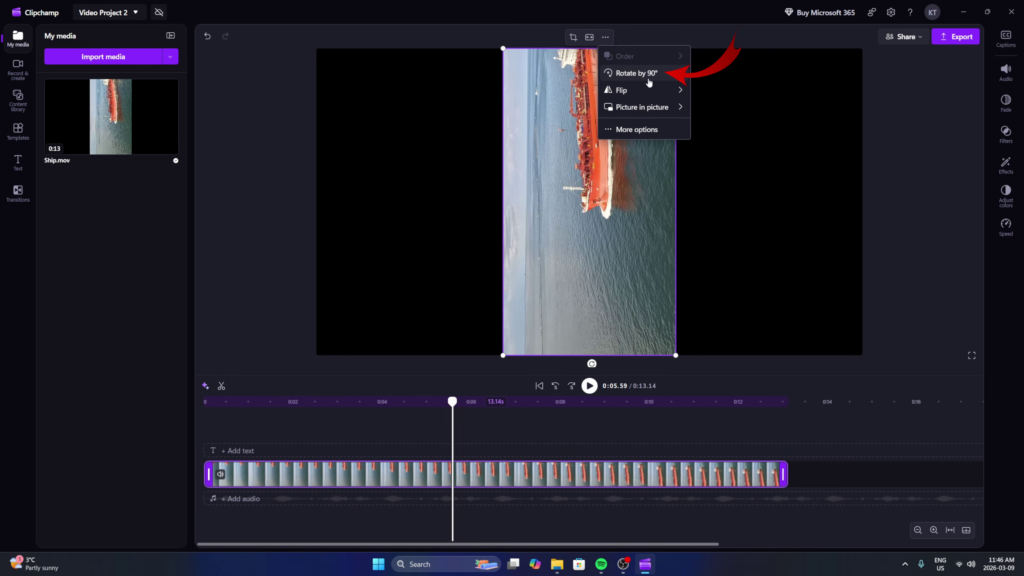
Step 4: Rotate and Fit the Frame
Now, drag your video clip down into the timeline at the bottom. To fix the orientation:
- Make sure your video clip is selected in the timeline.
- Look for the More menu or the Rotate icon (the circular arrow) just above the preview window. 🔄
- Click it until your video is in the correct orientation.
- If there are black bars on the sides, grab those little round nodes in the corners of your video and drag them out until the footage snaps to the corners and fills the entire frame. 🖼️
Step 5: Export Your Corrected Video
Now you’re ready to save your work!
- Click the Export button in the top right corner.
- Select 1080p (the high-quality free option). 📁
- Give your file a new name so you know it’s the “Correct” version.
- Hit save to your computer, and you’re all set!
That’s it! Your video is now perfectly oriented and ready to share. 🚀
Check out the full video tutorial here for a visual walkthrough: Watch on YouTube 📺