Want to quickly add emojis while typing on your Mac? Whether you’re writing an email, a note, a message, or a document, macOS includes a built-in emoji keyboard that’s easy to access.
In this tutorial, I’ll show you two easy ways to open the emoji keyboard on your Mac, including a menu option and a convenient keyboard shortcut.
What You Will Learn
- 😊 How to open the emoji keyboard on your Mac
- ⌨️ How to use the keyboard shortcut to open the emoji keyboard
- 📝 How to access the emoji keyboard from the Edit menu
- 📧 How to insert emojis into notes, emails, messages, and documents
Step-by-Step Instructions
Method 1: Open the Emoji Keyboard from the Edit Menu
Step 1: While typing in an app such as Notes, Mail, or another application, select Edit from the menu bar at the top of the screen.
Step 2: Scroll to the bottom of the Edit menu and select Emojis & Symbols.
Step 3: The emoji keyboard will appear. Browse through the available emojis and click one to insert it where you’re typing.
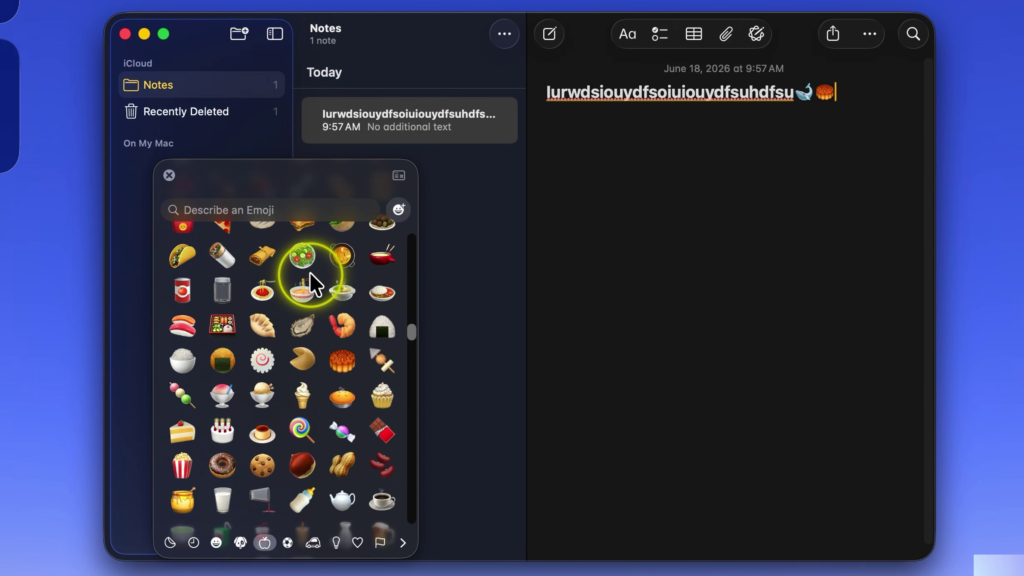
Method 2: Use the Keyboard Shortcut
Step 4: While typing, press Control + Command + Space on your keyboard.
Step 5: The emoji keyboard will instantly appear, allowing you to quickly insert emojis without opening the Edit menu.
Both methods open the same emoji keyboard, so you can use whichever one is faster and more convenient for your workflow.
▶️ Watch the full tutorial here:
https://youtu.be/wpkkG7ncIzw
Related Tutorials
🔹 How to Install Google Chrome on Mac
https://northernvikingeveryday.com/install-google-chrome-mac/
🔹 How to Change Your Default Browser on Mac
https://northernvikingeveryday.com/change-default-browser-mac/
🔹 How to Check Your Mac Specs
https://northernvikingeveryday.com/check-mac-specs/
🔹 How to Turn On Dark Mode on Mac
https://northernvikingeveryday.com/turn-on-dark-mode-mac/
🔹 How to Make the Menu Bar Always Show on Mac
https://northernvikingeveryday.com/make-menu-bar-always-show-mac/
🔹 How to Change the Default Notification Sound on Mac
https://northernvikingeveryday.com/change-default-notification-sound-mac/