Do you want Google Chrome, Firefox, or another browser to open your web links instead of Safari? macOS makes it easy to change your default browser so every link you click opens in the browser you prefer.
In this tutorial, I’ll show you how to change your default browser on your Mac using System Settings.
What You Will Learn
- 🌐 How to change your default browser on your Mac
- ⚙️ Where to find the Default Web Browser setting
- 💻 How to switch from Safari to Google Chrome, Firefox, or another installed browser
- 🔗 How to make web links automatically open in your preferred browser
Step-by-Step Instructions
Step 1: Open System Settings by clicking the Apple menu in the top-left corner of your screen and selecting System Settings.
Step 2: Select Desktop & Dock from the menu on the left.
Step 3: Scroll down to the Widgets section until you see Default Web Browser.
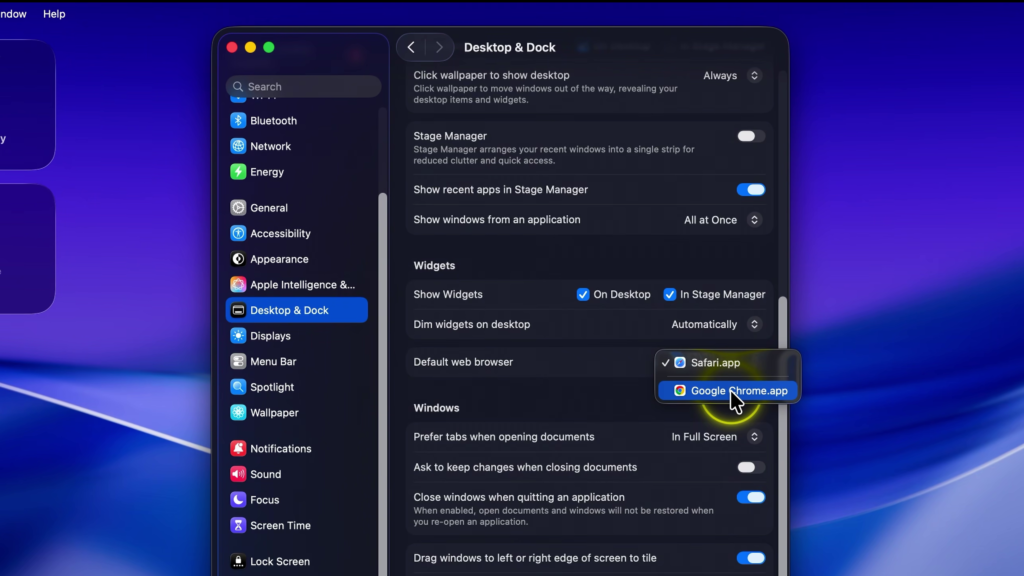
Step 4: Select the Default Web Browser drop-down menu.
Step 5: If you have other browsers installed, such as Google Chrome or Firefox, select the browser you’d like to use as your default.
Once you’ve made your selection, any web links you click on your Mac will automatically open in your new default browser.
▶️ Watch the full tutorial here:
https://youtu.be/lu08YLRyV4Q
Related Tutorials
🔹 How to Install Google Chrome on Mac
https://northernvikingeveryday.com/install-google-chrome-mac/
🔹 How to Check Your Mac Specs
https://northernvikingeveryday.com/check-mac-specs/
🔹 How to Turn Off the Login Password on Mac
https://northernvikingeveryday.com/turn-off-login-password-mac/
🔹 How to Turn On Dark Mode on Mac
https://northernvikingeveryday.com/turn-on-dark-mode-mac/
🔹 How to Make the Menu Bar Always Show on Mac
https://northernvikingeveryday.com/make-menu-bar-always-show-mac/
🔹 How to Change the Default Notification Sound on Mac
https://northernvikingeveryday.com/change-default-notification-sound-mac/