If you want to quickly identify the different types of files on your Mac, showing file extensions can make things much easier. File extensions such as .MP4, .MP3, .JPEG, .PNG, and .PDF let you see exactly what type of file you are working with at a glance.
By default, some file extensions may be hidden on your Mac. Fortunately, you can change a simple setting in Finder to show all filename extensions on your desktop and inside your folders. In this tutorial, I’ll walk you through exactly how to turn them on. 💻
How to Show File Extensions on Mac
You can enable file extensions through the Finder settings on your Mac. Once turned on, extensions will appear automatically on your files.
Step 1: Open Finder
Open the Finder app on your Mac. You can select the Finder icon, which looks like a face, from the Dock at the bottom of your screen.
Once Finder is active, you should see Finder displayed in the menu bar at the top of your screen.
Step 2: Open Finder Settings
Click Finder in the top-left corner of the menu bar and select Settings from the drop-down menu.
Step 3: Select Advanced
In the Finder Settings window, select the Advanced tab.
This is where you’ll find the setting for displaying file extensions on your Mac.
Step 4: Turn On File Name Extensions
Find Show all filename extensions and click the checkbox beside it. 📁
As soon as you enable the setting, extensions will appear at the end of your file names. For example, you may now see:
.pdffor a PDF document.mp3for an audio file.pngor.jpegfor an image.mp4for a video
You’ll also see the extensions on files located on your Mac desktop.
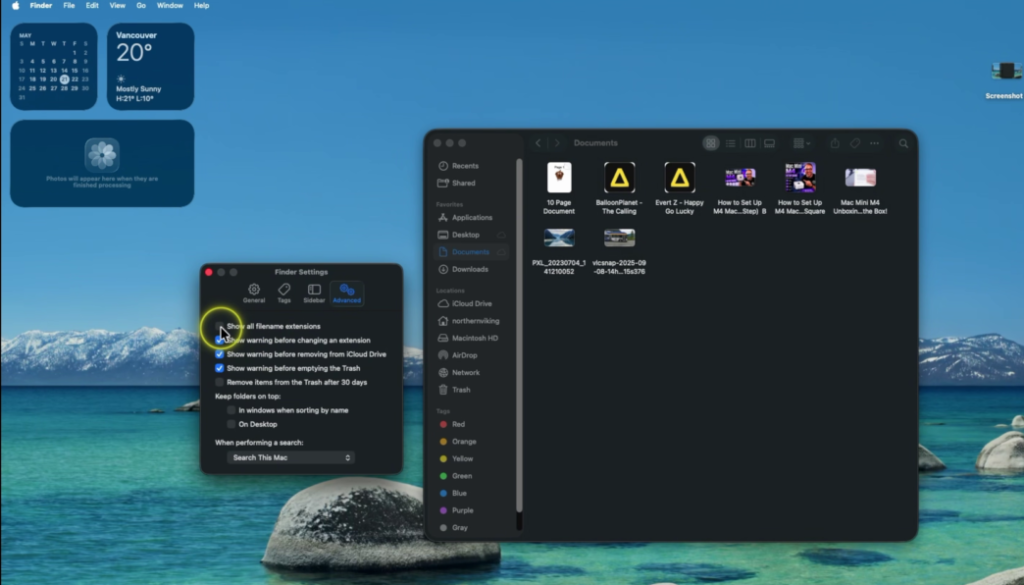
Why Show File Extensions on Mac?
Showing file extensions makes it easier to distinguish between different types of files, especially when files have similar names. Instead of relying only on the file icon, you can immediately see whether you’re working with a video, image, audio file, PDF, or another file type.
This can be particularly useful if you regularly work with photos, videos, downloads, or documents and want a quick way to identify different file formats. 🔍
Watch the Full Tutorial
If you’d like to see the entire process step by step, watch my video below. I’ll show you where to find the setting in Finder and what happens to your files when you turn file extensions on.
How to Show File Extensions on Mac (Step by Step)
Once the setting is enabled, your Mac will display file extensions on your desktop and inside Finder, making it much easier to identify your files at a glance.
Related Mac Tutorials 💻
Want to customize your Mac and learn a few more useful features? Check out these tutorials:
- Learn how to open the emoji keyboard on Mac for quick access to emojis and symbols while typing.
- Want to use a different browser? Here’s how to change the default browser on Mac.
- Keep your desktop more organized by learning how to change the screenshot save location on Mac.
- Prefer Chrome over Safari? Follow my guide on how to install Google Chrome on Mac.
- You can also learn how to turn off the login password on Mac and enable automatic login.