Want to move your Windows 11 taskbar from the bottom of your screen to the top, left, or right side? Windows 11 now includes a Taskbar position setting that makes it easy to move the taskbar around your screen without using any third-party software.
In this quick tutorial, I’ll show you exactly how to change the taskbar position in Windows 11.
Watch the video tutorial:
https://youtu.be/lrmXT4JItQg
Open Taskbar Settings
Start by finding an open area on your Windows 11 taskbar where there are no icons.
Right-click the empty area of the taskbar, then select Taskbar settings.
This will take you directly to the Windows 11 settings for customizing your taskbar.
Find the Taskbar Position Setting
Once Taskbar settings opens, scroll down until you find Taskbar behaviors.
Look for the setting called Taskbar position.
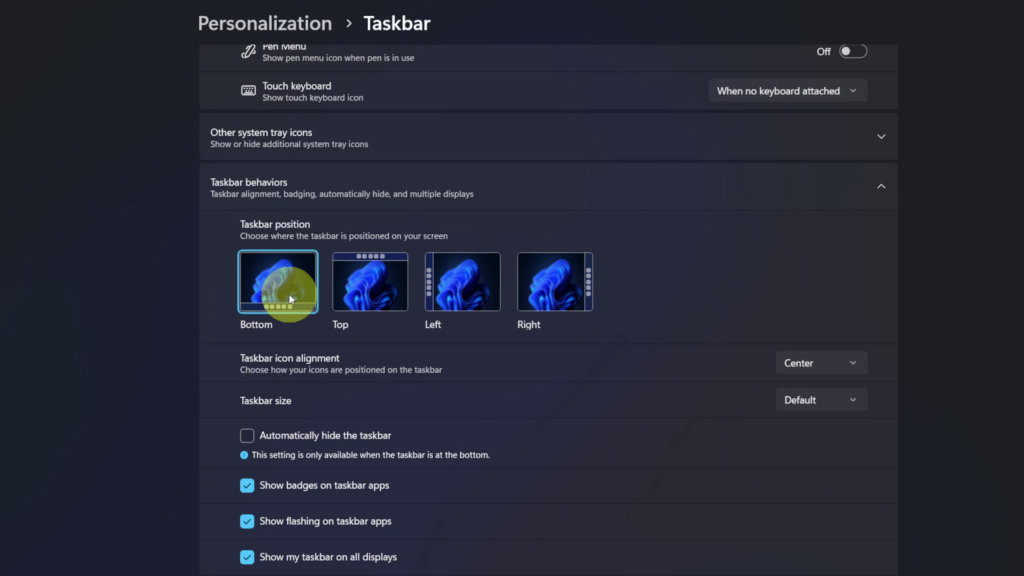
You should see four different positions available:
- Bottom
- Top
- Left
- Right
Microsoft introduced these additional taskbar positions as part of its newer Windows 11 taskbar customization options. Microsoft Support
Move the Windows 11 Taskbar
Select the position where you would like your taskbar to appear.
Choose Top to move the taskbar to the top of your screen. Select Left to place it along the left side, or choose Right to move it to the right side.
If you decide you prefer the traditional Windows layout, simply select Bottom to move the taskbar back to the bottom of your screen.
The change happens immediately, so there is no Save or Apply button that you need to select.
Which Taskbar Position Should You Use?
There really isn’t a right or wrong position. You can choose whichever location works best for how you use your computer.
I moved mine over to the left in the tutorial, but you can easily experiment with all four positions and see which one you prefer.
And that’s all there is to it. You can come back to the Taskbar position setting anytime you want to move your Windows 11 taskbar somewhere else.
Watch the Full Tutorial
Watch my complete step-by-step video here:
Related Tutorials
Turn Off Widgets in Windows 11
https://northernvikingeveryday.com/turn-off-widgets-windows-11/
Enable End Task on Taskbar Windows 11
https://northernvikingeveryday.com/enable-end-task-taskbar-windows-11/
Add Documents Shortcut Windows 11
https://northernvikingeveryday.com/add-documents-shortcut-windows-11/