Are the icons in your Mac Dock too small or too big? You can quickly change the size of the Dock and its icons using a simple setting in macOS.
In this tutorial, I’ll show you how to make the Dock bigger or smaller on Mac and adjust it to the size that works best for you.
Watch the video tutorial:
https://youtu.be/JsU5pe6uo9s
How to Change the Dock Size on Mac
Step 1: Open System Settings
From your Mac desktop, click the Apple icon in the top-left corner of the screen.
From the menu that appears, select System Settings.
Step 2: Open Desktop & Dock
Once System Settings opens, look through the options on the left-hand side.
Select Desktop & Dock.
This is where you can customize several settings for your Mac Dock, including its size. Apple Support
Step 3: Adjust the Dock Size
At the top of the Desktop & Dock settings, look for the Dock section and find the Size slider.
Click and hold the slider, then:
- Drag it toward Large to make the Dock and its icons bigger.
- Drag it toward Small to make the Dock and its icons smaller.
As you move the slider, you can adjust the Dock until you find the size that works best for you.
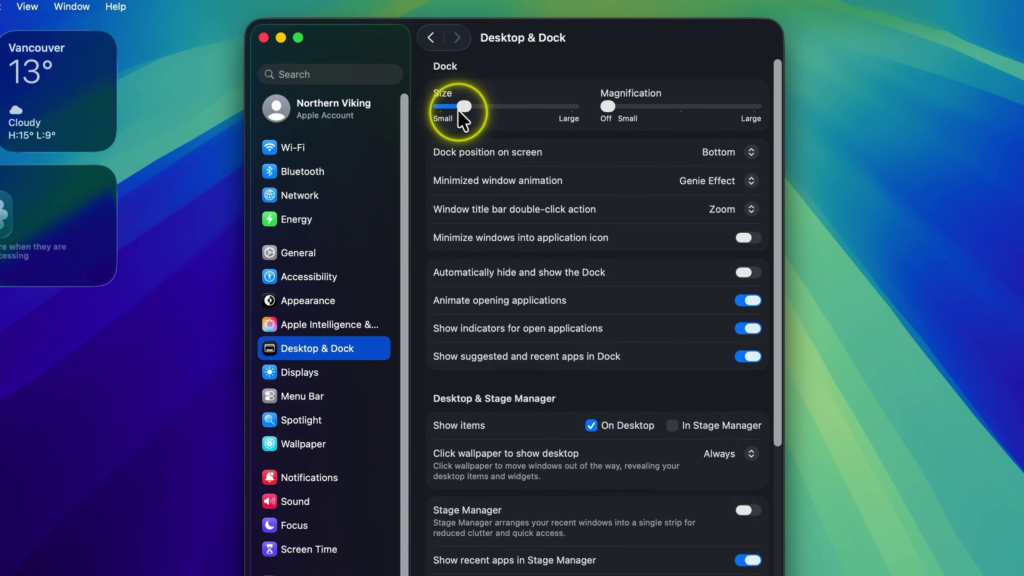
You don’t need to click Save or apply the change. Once you leave the slider where you want it, your Dock stays at that size.
And really, it’s that simple to make the Dock bigger or smaller on your Mac.
Watch the Full Tutorial 🎥
How to Make the Dock Bigger or Smaller on Mac
https://youtu.be/JsU5pe6uo9s
Related Mac Tutorials
How to Auto Hide the Dock on Mac
https://northernvikingeveryday.com/auto-hide-dock-mac/
How to Make Text Bigger on Mac
https://northernvikingeveryday.com/make-text-bigger-mac/
How to Show File Extensions on Mac
https://northernvikingeveryday.com/show-file-extensions-mac/
How to Change Your Homepage in Safari on Mac
https://northernvikingeveryday.com/change-homepage-safari/