Do you want Safari to open to Google or another website instead of the default Start Page? Changing your homepage in Safari is easy, but there’s one important step many people miss.
Simply changing the Homepage setting isn’t enough. You’ll also need to update the settings for new windows and new tabs so they automatically open to your preferred website. In this tutorial, I’ll show you exactly how to do it. 🚀
How to Change Your Homepage in Safari
Follow the steps below to set a custom homepage in Safari and make sure it opens whenever you launch the browser.
Step 1: Open Safari
From your desktop, open the Safari browser.
You’ll know it’s active when Safari appears in the upper-left corner of your screen.
Step 2: Open Safari Settings
Click Safari in the upper-left corner of the screen.
From the drop-down menu, select Settings.
Step 3: Select the General Tab
Once the Settings window opens, you’ll see several tabs across the top.
Select the General tab.
Step 4: Change Your Homepage
Under General, locate the Homepage field.
Enter the website you’d like to use as your homepage. In this example, the homepage is changed to google.com. 🌐
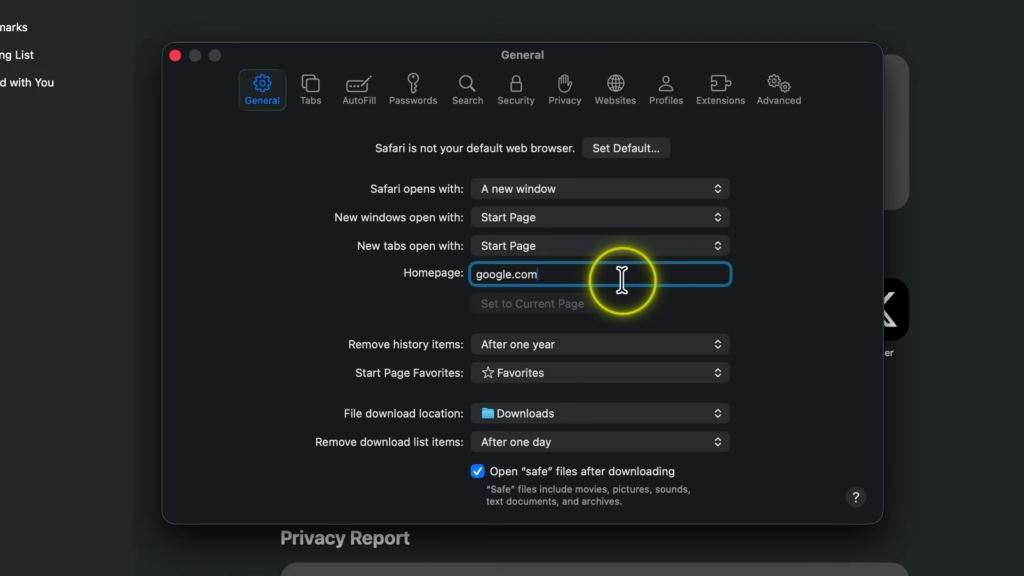
Step 5: Change the New Windows Setting
Changing the homepage alone won’t automatically make Safari open to that website.
Locate New windows open with and change it from Start Page to Homepage.
Step 6: Change the New Tabs Setting
Next, locate New tabs open with and change it to Homepage.
Now, both new windows and new tabs will open to your selected website. 💻
Step 7: Test Your Changes
Close Safari and open it again.
Safari should now open directly to the website you selected. ✅
Why Change Your Safari Homepage?
Setting a custom homepage can save you time by automatically opening your favorite website every time you launch Safari.
Whether you prefer Google, a news website, a search engine, or another webpage, customizing your homepage allows you to create a more personalized browsing experience. 🔍
Watch the Full Tutorial 🎥 https://youtu.be/R2DJsDlWB-0
Related Mac Tutorials 💻
- Open Emoji Keyboard on Mac
https://northernvikingeveryday.com/open-emoji-keyboard-mac/ - Change Default Browser on Mac
https://northernvikingeveryday.com/change-default-browser-mac/ - Change Screenshot Save Location on Mac
https://northernvikingeveryday.com/change-screenshot-save-location-mac/ - Install Google Chrome on Mac
https://northernvikingeveryday.com/install-google-chrome-mac/ - Turn Off Login Password on Mac
https://northernvikingeveryday.com/turn-off-login-password-mac/