Do you want your Mac Dock icons to get bigger when you hover over them with your mouse? 💻 Maybe you prefer having Dock magnification turned off so your icons stay the same size. Luckily, macOS makes it easy to customize this setting.
In this tutorial, I’ll show you how to turn Dock magnification on or off on Mac and adjust the magnification size so your app icons get as big or small as you like when you hover over them.
Watch the video tutorial: https://youtu.be/4v981wmsN0M
How to Turn Dock Magnification On or Off on Mac
You can adjust Dock magnification directly through your Mac’s System Settings. Here’s how to find the setting and customize it.
Step 1: Open System Settings
From your Mac desktop, head to the top-left corner of your screen and click the Apple icon.
From the menu that appears, select System Settings.
This will open the settings where you can customize different features on your Mac.
Step 2: Open Desktop & Dock
Once System Settings opens, look through the options on the left-hand side.
Find and select Desktop & Dock.
Near the top of the window, you’ll see the Dock settings, including options for Size and Magnification.
Step 3: Turn Dock Magnification On or Off
Under the Dock section, look for the slider labeled Magnification, located to the right of the Size slider.
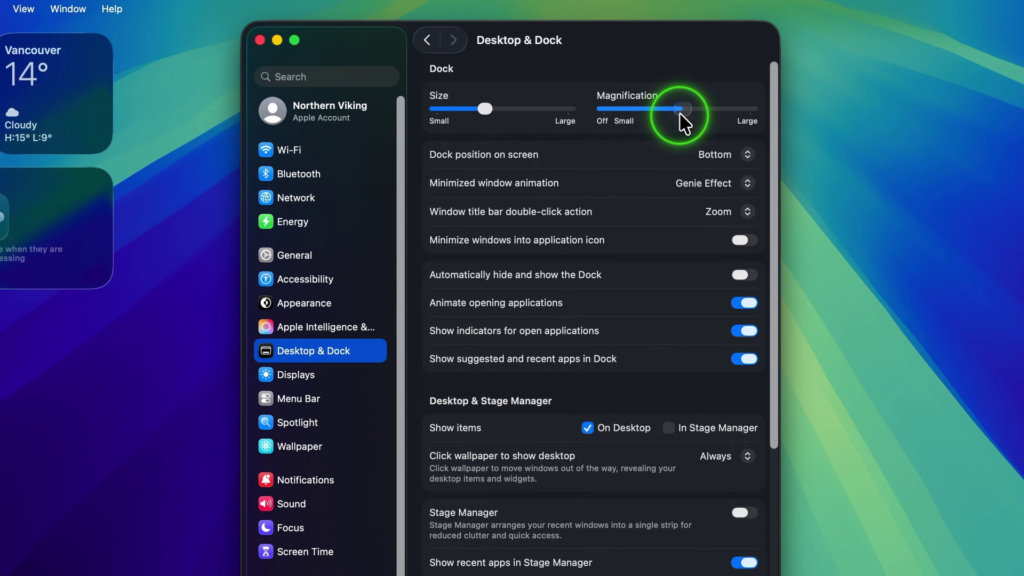
You can use this slider to enable or disable the magnification effect.
- Turn Dock magnification off: Drag the slider all the way to the left until it reaches Off.
- Turn Dock magnification on: Move the slider to the right. You can start by positioning it somewhere around the middle.
Once you’ve enabled magnification, move your mouse down to the Dock and hover over your app icons.
You’ll notice that the icons get bigger as you move your cursor across them. 🔍
Step 4: Adjust the Dock Magnification Size
You can also adjust how large your Mac Dock icons become when you hover over them.
Move the Magnification slider toward Large to increase the effect. If you prefer smaller magnification, move the slider back toward the left.
To see the difference, move your cursor across the icons in your Dock.
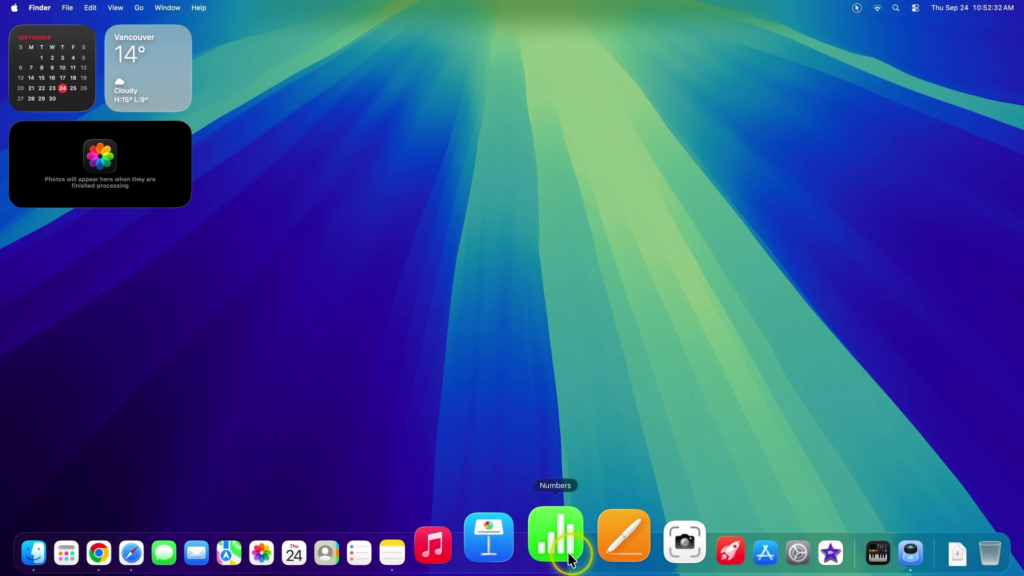
In my tutorial, I demonstrate how large the icons can get when the magnification is turned all the way up. I then move the slider back to approximately the middle, which is where I prefer to keep it.
You can experiment with the different sizes until you find one that works best for you.
How to Turn Off Dock Magnification If You Don’t Like It
If you decide you don’t want your Dock icons getting bigger when you hover over them, you can easily turn the feature off again.
Simply return to System Settings → Desktop & Dock, find the Magnification slider, and drag it all the way to Off.
Your Dock icons will no longer enlarge when you hover over them.
This is especially useful if you prefer keeping your Dock icons at a consistent size.
Final Thoughts
And that’s all there is to it! Turning Dock magnification on or off on Mac is a simple way to customize how your Dock looks and behaves.
Whether you like your app icons getting bigger when you hover over them or prefer keeping magnification turned off, you can adjust the setting anytime through System Settings. ✅
Watch the Full Tutorial 🎥
If you’d like to see the entire process in action, watch my step-by-step YouTube tutorial below.
Related Mac Tutorials 💻
How to Auto Hide the Dock on Mac https://northernvikingeveryday.com/auto-hide-dock-mac/
How to Make the Dock Bigger or Smaller on Mac https://northernvikingeveryday.com/make-dock-bigger-smaller-mac/
How to Make Text Bigger on Mac https://northernvikingeveryday.com/make-text-bigger-mac/
How to Make the Menu Bar Always Show on Mac https://northernvikingeveryday.com/make-menu-bar-always-show-mac/
How to Show File Extensions on Mac https://northernvikingeveryday.com/show-file-extensions-mac/