Want to change the default video player on your Mac? If you’re tired of videos automatically opening in QuickTime Player, macOS makes it easy to choose a different application, such as VLC Media Player.
In this tutorial, I’ll show you how to change the default video player on Mac, so your video files automatically open in your preferred application. This works on MacBook Air, MacBook Pro, iMac, and Mac mini, and you won’t need to install any additional software to change the setting.
🎬 Watch the Video Tutorial
Follow along with my quick step-by-step tutorial showing how to change your default video player on Mac. https://youtu.be/kLZ7qGHCTuM
🎥 Why Change Your Default Video Player on Mac?
QuickTime Player comes preinstalled on macOS and works well for many common video files. However, you might prefer another video player because it offers additional features or supports more video formats.
For example, VLC Media Player is a popular free alternative that supports formats such as MP4, MKV, AVI, WMV, MOV, and WebM.
Here are a few benefits of changing your default video player:
🔹 Better Format Compatibility: Open more video formats without having to convert your files first.
🔹 Convenience: Double-click your videos and have them automatically open in your preferred application.
🔹 Additional Features: VLC offers subtitle controls, multiple audio track support, and additional playback options.
🔹 Personal Preference: Use the video player you’re most comfortable with instead of QuickTime Player.
💻 How to Change the Default Video Player on Mac
You can change your default video player directly through Finder in just a few simple steps.
1. Open Finder: Locate a video file on your Mac, such as an MP4 video in your Documents or Downloads folder.
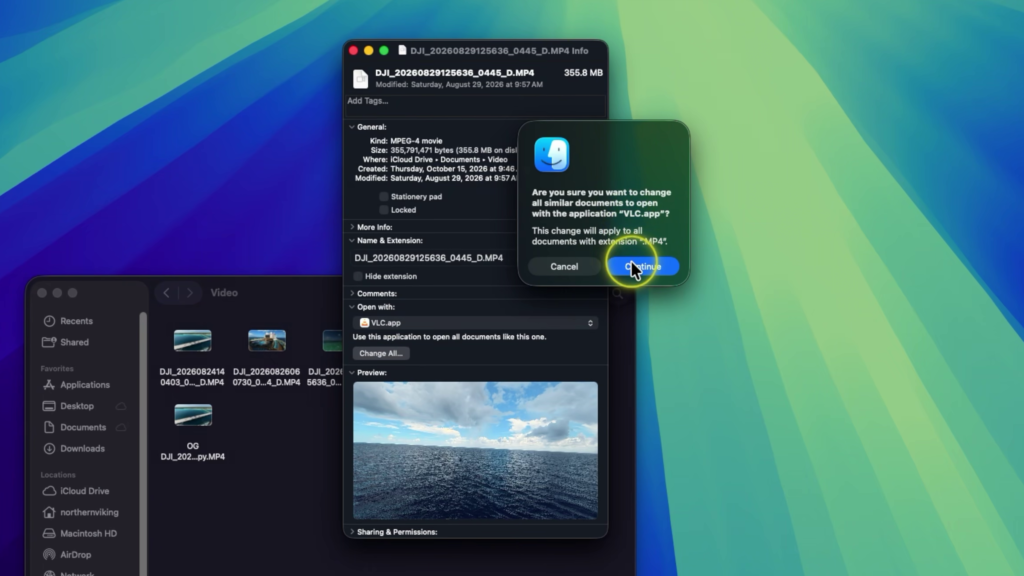
2. Open Get Info: Right-click the video file and select Get Info from the menu.
3. Find Open With: In the information window, expand the Open with section to see which application currently opens that video.
4. Choose Your Video Player: Click the dropdown menu and select VLC Media Player or another video player installed on your Mac.
5. Click Change All: Select Change All, then click Continue to confirm that you want similar video files to open with your selected application.
That’s it! When you double-click a video with that file extension, it should now automatically open in your preferred video player.
📁 Do You Need to Change the Default Player for Every Video Format?
Yes. One important thing to understand is that macOS manages default applications separately for different file types.
For example, changing the default video player for MP4 files doesn’t automatically change the default player for MOV, MKV, or AVI files.
If you want VLC Media Player to open all those formats, simply repeat the steps above using a video file with each extension.
This gives you the flexibility to use different video players for different types of files.
👍 Final Thoughts
Changing your default video player on Mac is a simple way to customize how your videos open. Whether you prefer VLC Media Player, QuickTime Player, or another application, macOS lets you choose the player that works best for you.
If you’re regularly working with different video formats, VLC is especially useful because of its broad compatibility and additional playback features.
🎬 Watch the Full Tutorial
For a complete walkthrough, watch my video showing how to change the default video player on Mac.
▶️ https://youtu.be/kLZ7qGHCTuM
🔗 Related Mac Tutorials
🔹 How to Download and Install VLC Media Player on Mac Learn how to download and install the free VLC Media Player to play additional video formats on your Mac.
🔹 How to Show File Extensions on Mac Learn how to display file extensions in Finder so you can easily identify MP4, MOV, and other video file types.
🔹 How to Change Your Default Browser on Mac Customize your Mac by choosing which web browser automatically opens your links.
🔹 How to Make Text Bigger on Mac Adjust your Mac’s display settings to make text and other screen elements easier to read.