Not a fan of the centered taskbar icons in Windows 11? 💻 If you prefer the traditional Windows layout with your Start menu and taskbar icons on the left, you can easily change their alignment in just a few clicks.
In this quick tutorial, I’ll show you how to move your Windows 11 taskbar icons from the center to the left without installing any additional software.
🎥 Watch the Video Tutorial
Follow along with my quick step-by-step video tutorial to learn how to change your Windows 11 taskbar icon alignment.
⚙️ How to Move Windows 11 Taskbar Icons to the Left
Step 1: Open Taskbar Settings
From your Windows 11 desktop, right-click an empty area of your taskbar and select Taskbar settings.
Step 2: Expand Taskbar Behaviors
Scroll down until you find Taskbar behaviors. Click to expand this section if it isn’t already open.
Step 3: Change the Taskbar Icon Alignment
Locate the Taskbar icon alignment setting and click the dropdown menu.
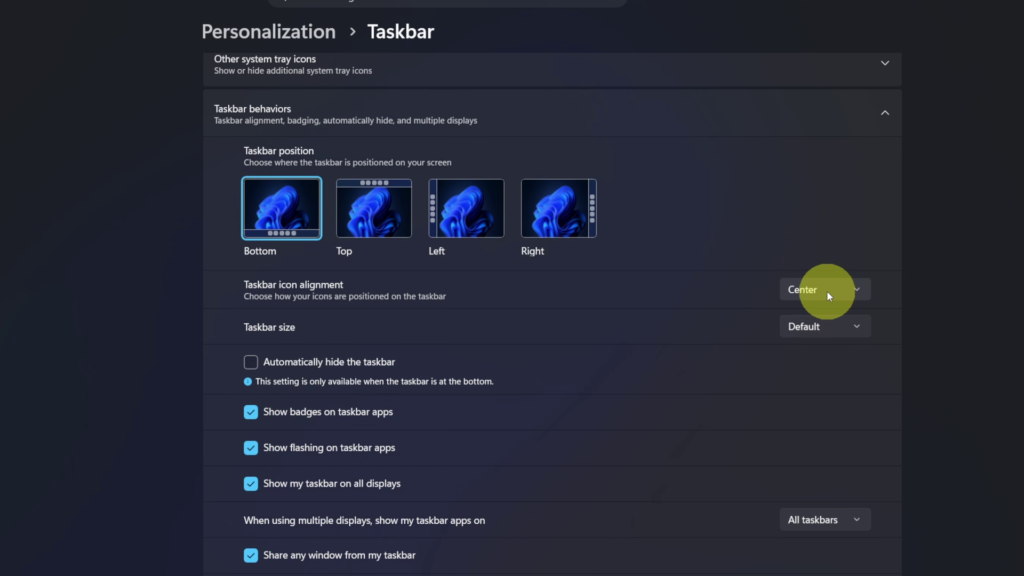
Change the setting from Center to Left. Your Start menu and taskbar icons will immediately move to the left side of your taskbar.
💡 How to Move Your Taskbar Icons Back to the Center
If you decide you prefer the centered Windows 11 taskbar layout, simply return to Taskbar settings > Taskbar behaviors and change the alignment back to Center.
✅ Final Thoughts
Moving your taskbar icons to the left in Windows 11 is a quick and easy way to customize your desktop and bring back that familiar Windows look. You can switch between left and centered taskbar icons whenever you like.