Are you looking for a quick way to add notes or fill out a form on a PDF document without paying for expensive software? Many people think they need a paid subscription to edit a PDF, but Windows 11 actually has a powerful tool built right in that lets you do it for free. 🚀
In this tutorial, I am going to show you how to type on any PDF using Microsoft Edge. Because this browser comes pre-installed on your PC, you do not need to worry about additional downloads or third-party apps.
Step 1: Open Your PDF with Microsoft Edge
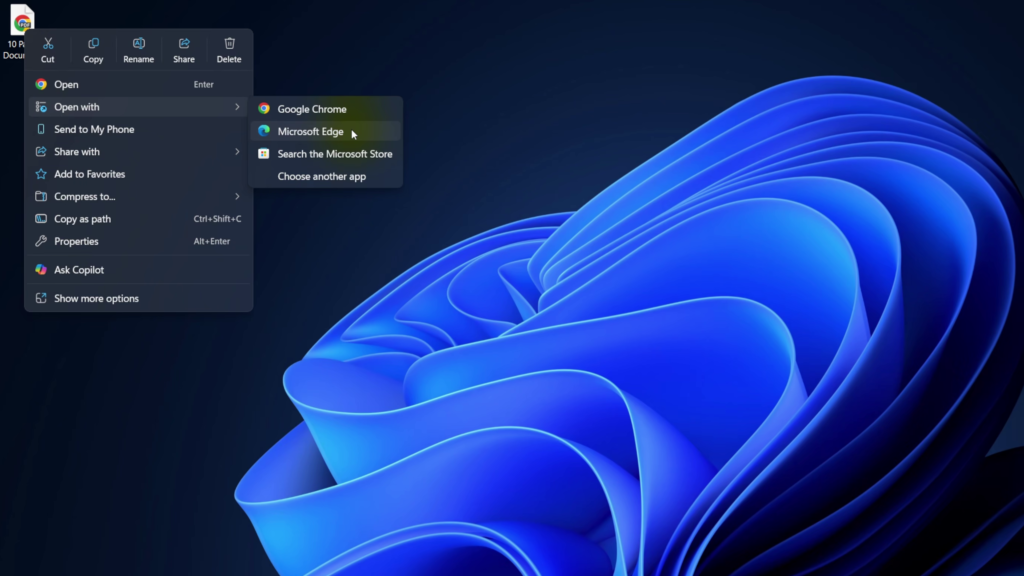
First, locate the PDF file on your computer. Instead of just double-clicking it, right-click on the file and hover over the Open with menu. From the list of options, select Microsoft Edge. This will open the document in the Edge PDF viewer.
Step 2: Use the “Add Text” Tool
At the top of the browser window, you will see a toolbar with various options. Look for the letter T in a box icon. When you hover over it, it will say Add text. Click that icon, and then click anywhere on your document where you want to start typing. ✍️
Step 3: Customize Your Text
Once you have typed your notes, you have several options to make it look exactly how you want:
- Move and Resize: Use the handles on the text box to move it around or expand the box to fit your text on one line.
- Change Colors: You can switch between blue, black, green, or red text.
- Adjust Size: Use the text options to make your font larger or smaller.
- Delete: If you make a mistake, you can simply click the garbage can icon to remove the text box.
Crucial Tip: To lock the text in place, make sure you click off the text box so the red outline disappears.
Step 4: Save a New Copy ⚠️
This is the most important step if you want to keep your original document clean. Instead of hitting the regular “Save” button, click on Save as in the top right corner. This allows you to rename the file and save it as a brand-new document on your desktop.
Watch the Full Video Tutorial
If you want to see exactly how these steps look on screen, check out my full step-by-step video here:
Stop overcomplicating PDF editing and start using the free tools you already have on your Windows 11 PC! 💻✨