Are you having trouble playing certain video files on your Mac? VLC Media Player is a completely free video player that supports a wide variety of video formats that may not work in QuickTime Player.
In this tutorial, I’ll show you how to download and install VLC Media Player on your Mac, open your videos, and explain why it’s a useful application to have installed.
🎬 Watch the Video Tutorial
Follow along with my step-by-step video showing how to download, install, and use VLC Media Player on Mac. https://youtu.be/Haf5KOrpAxs
🎥 Why Use VLC Media Player on Mac?
VLC Media Player is a free, open-source multimedia player developed by VideoLAN. One of its biggest advantages is its ability to play a wide variety of video and audio formats without needing to download additional codecs.
While QuickTime Player works well for many common video files, VLC supports additional formats that can be useful when working with videos from different cameras, computers, and older devices.
Here are some popular video formats VLC supports:
🔹 MP4: One of the most common video formats used by smartphones, cameras, and online videos.
🔹 MKV: Often used for high-quality videos containing multiple audio tracks and subtitles.
🔹 AVI: An older video format commonly found in archived recordings and videos created on Windows computers.
🔹 WMV: Windows Media Video files that may not play directly in QuickTime Player.
🔹 MOV: A popular video format used by Apple devices and video editing applications.
🔹 WebM: A video format commonly used for online videos and web-based content.
🔹 FLV: An older Flash Video format that you might encounter when working with archived videos.
VLC also supports video codecs such as H.264, H.265/HEVC, MPEG-2, and VP9, along with audio formats including MP3, AAC, FLAC, and OGG.
The biggest advantage is that VLC can often play video files that QuickTime Player cannot open, without requiring you to convert them first.
💻 How to Download and Install VLC Media Player on Mac
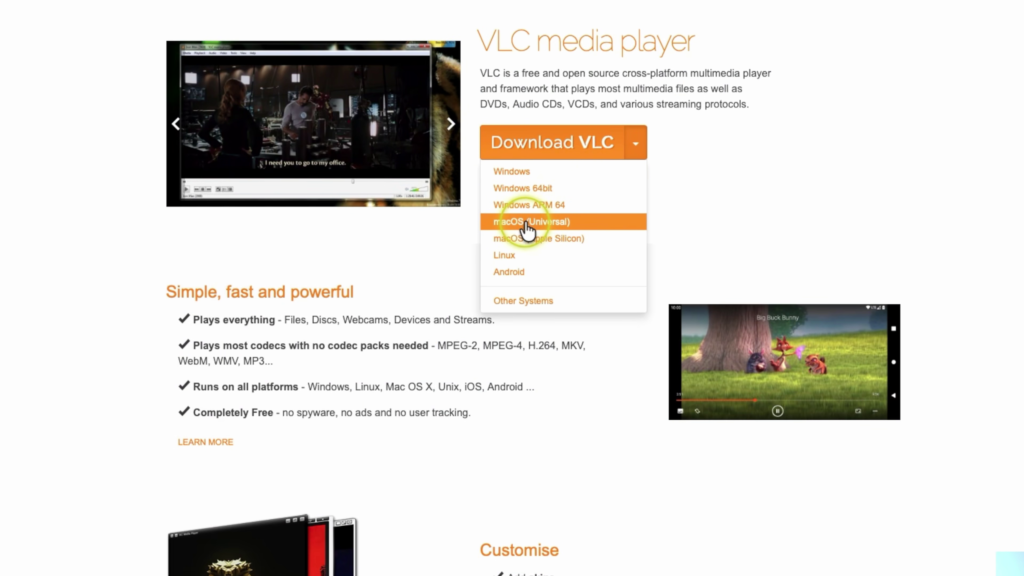
Step 1: Open Safari or Chrome and visit the official VLC Media Player website at https://www.videolan.org/vlc/
Step 2: Click the download dropdown and select the appropriate macOS version. Choose Apple Silicon for Macs with M-series chips, or Universal for broad compatibility.
Step 3: Download VLC Media Player and locate the downloaded file in your Mac’s Downloads folder.
Step 4: Double-click the downloaded disk image and drag the VLC application into your Applications folder.
Step 5: Open VLC Media Player from Applications and follow any initial prompts to launch the program.
That’s it! VLC Media Player is now installed on your Mac and ready to use.
▶️ How to Open Videos Using VLC Media Player
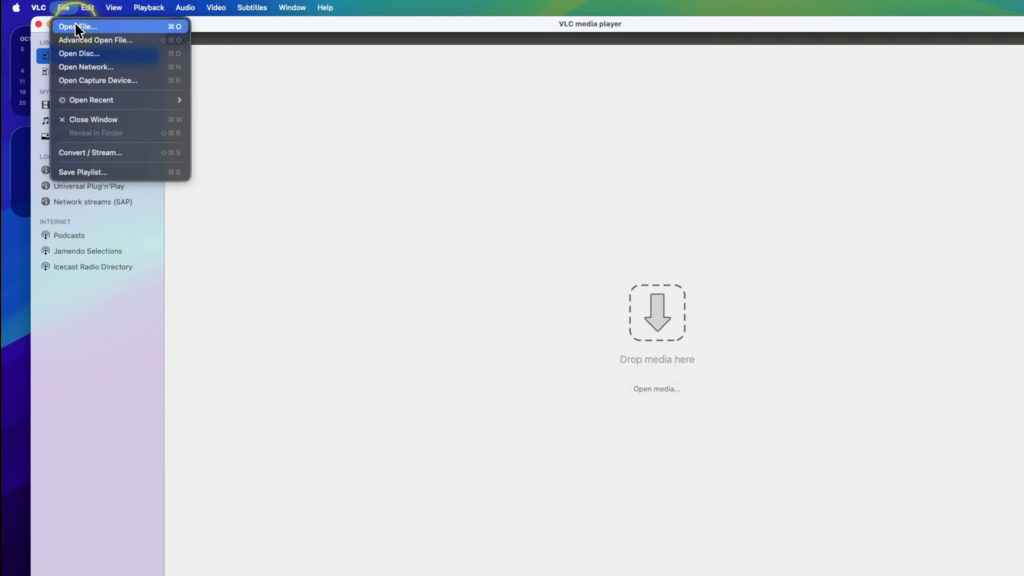
Once VLC Media Player is installed, there are several easy ways to open your videos.
🔹 Drag and Drop: Drag a video file directly into the VLC Media Player window.
🔹 Open File: Select File > Open File from the top menu and browse your Mac for the video you want to play.
🔹 Open With: Right-click a video in Finder, select Open With, and choose VLC Media Player.
You don’t have to replace QuickTime Player entirely. You can continue using QuickTime for your regular videos and switch to VLC whenever you encounter a file that QuickTime doesn’t support.
🔗 Download VLC Media Player for Free
VLC Media Player is completely free to download and use, with no subscription required.
🔗 Official VLC Media Player Download: https://www.videolan.org/vlc/
I recommend downloading VLC directly from the official VideoLAN website rather than an unfamiliar third-party download site.
👍 Final Thoughts
VLC Media Player is a great free addition to your Mac, especially if you regularly work with videos from different devices or encounter files that won’t open in QuickTime Player.
With support for a wide variety of video and audio formats, it’s a useful application to keep installed alongside QuickTime Player.
🎬 Watch the Full Tutorial
For a complete walkthrough, check out my video showing how to download, install, and use VLC Media Player on Mac.
▶️ https://youtu.be/Haf5KOrpAxs
🔗 Related Mac Tutorials
🔹 How to Show File Extensions on Mac Learn how to display file extensions like MP4, MKV, and AVI in Finder so you can identify different file types more easily.
🔹 How to Set Up the Mac Mini M4 A step-by-step guide to setting up your Mac mini, connecting accessories, and getting started with macOS.
🔹 How to Change Your Homepage in Safari on Mac Customize Safari so it opens your preferred website when you launch the browser.
🔹 How to Make Text Bigger on Mac Adjust your Mac’s display settings to make text and other screen elements easier to read.
One thought on “How to Download and Install VLC Media Player on Mac (Free Video Player)”