If you’ve ever tried to screenshot a YouTube video, you know the problem right away. The image is usually blurry, compressed, or covered with playback controls.
There’s actually a built-in browser feature that lets you save a high quality photo directly from any YouTube video frame. No extensions. No software. Just a hidden option most people never use.
🎥 The Hidden Trick to Save YouTube Frames in HD
Here’s how it works 👇
Pause the YouTube video at the exact frame you want to capture.
Right-click on the video twice (without moving your mouse).
Click “Save video frame as” in the menu.
Choose your save location and hit Save.
Done. You now have a clean, high quality image saved directly from the video.
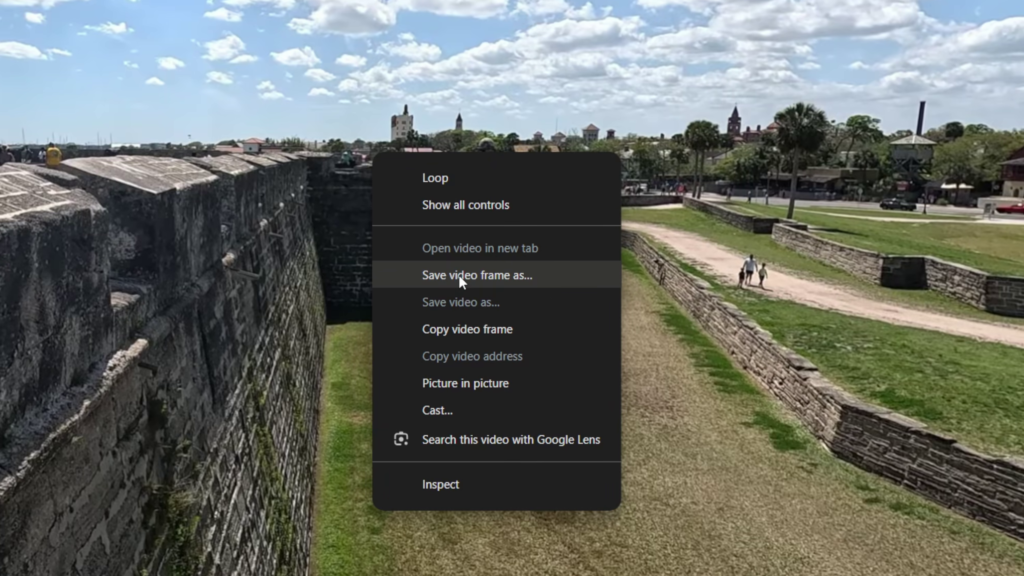
✨✨ Why This Works So Well
This method exports the frame directly from the video instead of taking a screen capture, which helps preserve image clarity and avoids on-screen UI elements like controls and progress bars.
The final image quality depends on the video’s current playback resolution (for example 1080p or 4K), so using the highest available quality will give you the best result.
Perfect for thumbnails, content creation, or saving reference images.
🔧 Pro Tip
Always set the video quality to the highest available option (1080p or 4K) before capturing. The final image quality depends on playback resolution.
🎬 Watch the Full Tutorial
👉 https://youtu.be/_458LlB09qM
💡 Final Thoughts
This is one of those hidden browser features that most people overlook, but once you know it, it becomes part of your workflow instantly.
Fast, simple, and surprisingly powerful for grabbing high quality YouTube frames.
🧭 More Helpful Browser & Google Tips
Watch YouTube in a floating window while multitasking
https://northernvikingeveryday.com/watch-youtube-in-a-floating-window/
Save any webpage as a PDF directly in Google Chrome
https://northernvikingeveryday.com/save-webpage-as-pdf-google-chrome/
Edit and type directly on PDF files in Windows 11
https://northernvikingeveryday.com/how-to-type-on-a-pdf-windows-11/
View older versions of places using Google Maps Street View history
https://northernvikingeveryday.com/how-to-see-older-google-maps-street-view/
Enable Google Lens directly in the Chrome toolbar
https://northernvikingeveryday.com/how-to-enable-google-lens-chrome-toolbar/