Is your Search Box missing from the Windows 11 taskbar? 🔍 Windows 11 gives you several options for customizing how Search appears on your taskbar, including hiding it completely, displaying only the Search icon, adding an icon and label, or showing the full Search Box.
In this tutorial, I’ll show you how to turn the Search Box on or off and choose the option that works best for you.
Watch the video tutorial:
https://youtu.be/RMI0zWXKJz8
How to Turn the Search Box On or Off in Windows 11
Step 1: Open Windows 11 Settings
Start by going down to the Start menu at the bottom of your screen.
Right-click the Start button and select Settings from the menu.
Step 2: Open Personalization
Once Settings opens, you’ll see several options on the left-hand side.
Select Personalization.
Step 3: Open the Taskbar Settings
Under Personalization, scroll down until you see Taskbar.
Select Taskbar to open the taskbar settings.
Step 4: Find the Search Setting
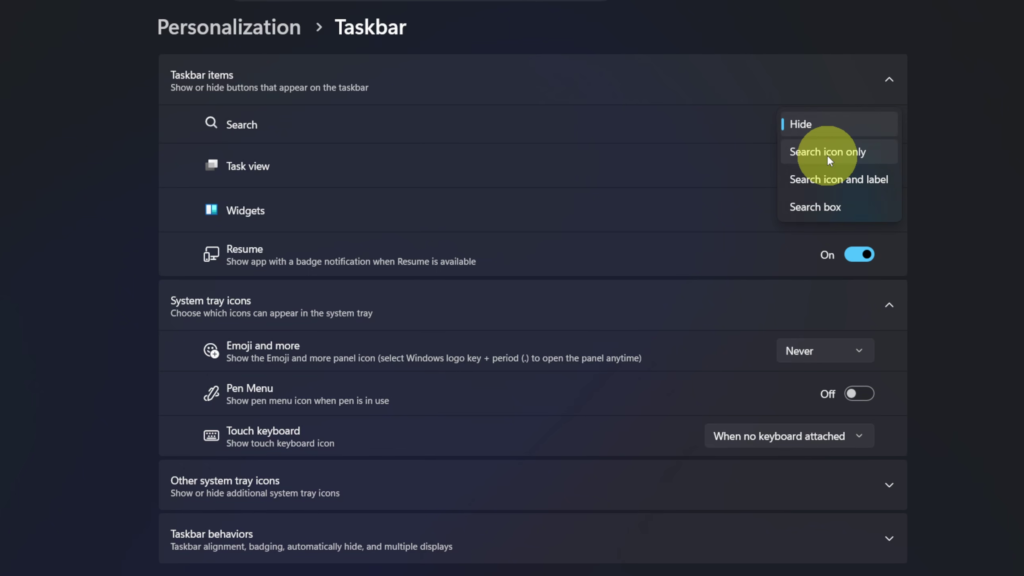
At the top, under Taskbar items, you’ll see the Search option.
On my computer, Hide is selected, which is why the Search Box is missing from the taskbar.
If you want to hide Search from your taskbar, select Hide.
Step 5: Choose How Search Appears on Your Taskbar
If you want to bring Search back, click the drop-down menu beside Search.
Windows 11 gives you several choices:
- Hide: Removes Search from the taskbar.
- Search icon only: Displays just the magnifying glass icon.
- Search icon and label: Displays the magnifying glass along with the word Search.
- Search box: Displays the full Search Box on the taskbar.
In the video, I first demonstrate Search icon only, which gives you a nice, sleek magnifying glass on the taskbar.
Next, I show Search icon and label, which displays the magnifying glass along with the word Search.
Finally, I demonstrate the full Search box, which takes up more room on the taskbar.
For my setup, I select Search icon and label.
And that’s it! ✅ You can now add, remove, or customize the Search option on your Windows 11 taskbar.
How to Hide the Search Box in Windows 11
If you want to remove Search from your taskbar completely, follow the same steps:
Settings > Personalization > Taskbar > Taskbar items > Search > Hide
Selecting Hide removes Search from the taskbar. You can return to these settings anytime if you want to bring it back.
Watch the Full Tutorial 🎥
How to Turn the Search Box On or Off in Windows 11
Related Windows 11 Tutorials 💻
How to Turn Widgets On or Off in Windows 11
https://northernvikingeveryday.com/turn-off-widgets-windows-11/
How to Add a Documents Shortcut Beside the Power Button in Windows 11
https://northernvikingeveryday.com/add-documents-shortcut-windows-11/
Can’t See File Extensions in Windows 11? Here’s the Fix
https://northernvikingeveryday.com/show-file-extensions-windows-11/
How to Extract Audio from Video FREE in Windows 11
https://northernvikingeveryday.com/extract-audio-from-video-windows-11/