Want to remove Copilot from the taskbar in Windows 11? 💻 Maybe you find the Copilot icon annoying or simply want to clean up your taskbar. The good news is that it’s easy to remove, and you can always add it back if you change your mind.
In this quick tutorial, I’ll show you how to remove Copilot from the Windows 11 taskbar, pin it back, and change its position, all in just a few clicks.
🎥 Watch the Video Tutorial
How to Remove Copilot From the Taskbar in Windows 11
Removing Copilot from your taskbar is simple because it’s pinned there just like any other application.
- Find the Copilot icon on your Windows 11 taskbar.
- Right-click the Copilot icon.
- Select Unpin from taskbar.
That’s it! The Copilot icon will immediately disappear from your taskbar. You’re not uninstalling the application, just removing its shortcut.
How to Add Copilot Back to the Windows 11 Taskbar
If you decide you want Copilot back, you can easily pin it to your taskbar again.
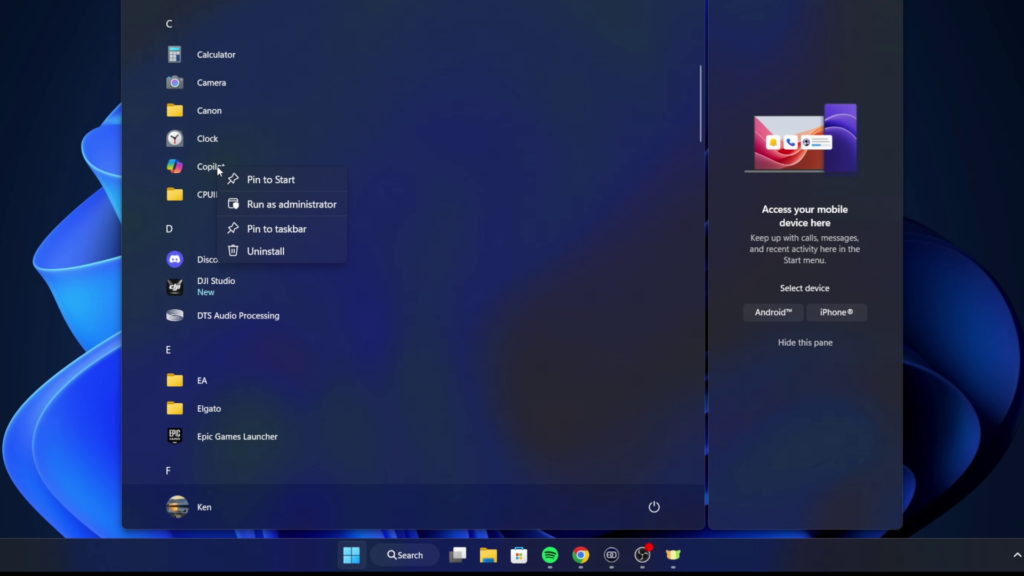
- Open the Start menu in Windows 11.
- Find Copilot in your list of installed applications.
- Right-click Copilot and select Pin to taskbar.
Copilot will now reappear on your taskbar.
How to Move the Copilot Icon on Your Taskbar
You can also change where Copilot appears among your taskbar icons.
Simply left-click and hold the Copilot icon, then drag it to your preferred position and release the mouse button.
This is a convenient way to organize your Windows 11 taskbar and keep your most-used applications where you want them.
Final Thoughts
Whether you’re removing Copilot for a cleaner taskbar or adding it back after changing your mind, Windows 11 makes the process easy.
And remember, unpinning Copilot from your taskbar doesn’t uninstall it from your computer.
Related Windows 11 Tutorials
- How to Turn Widgets On or Off in Windows 11
- How to Change Taskbar Position in Windows 11
- How to Enable End Task on the Taskbar in Windows 11