Want to move the Dock on your Mac to a different location? 💻 Whether you prefer your Mac Dock on the left, right, or bottom of your screen, macOS makes it easy to change its position in just a few clicks.
In this quick tutorial, I’ll show you how to move the Dock on Mac using System Settings. You’ll also learn how to adjust the Dock size to customize your desktop.
🎥 Watch the Video Tutorial
Follow along with my step-by-step video tutorial to see how to move the Mac Dock and adjust its size.
▶️ https://youtu.be/frgyhvAa_nQ
⚙️ How to Move the Dock on Mac
Step 1: Open System Settings
Click the Apple menu in the top-left corner of your Mac screen and select System Settings.
Step 2: Open Desktop & Dock
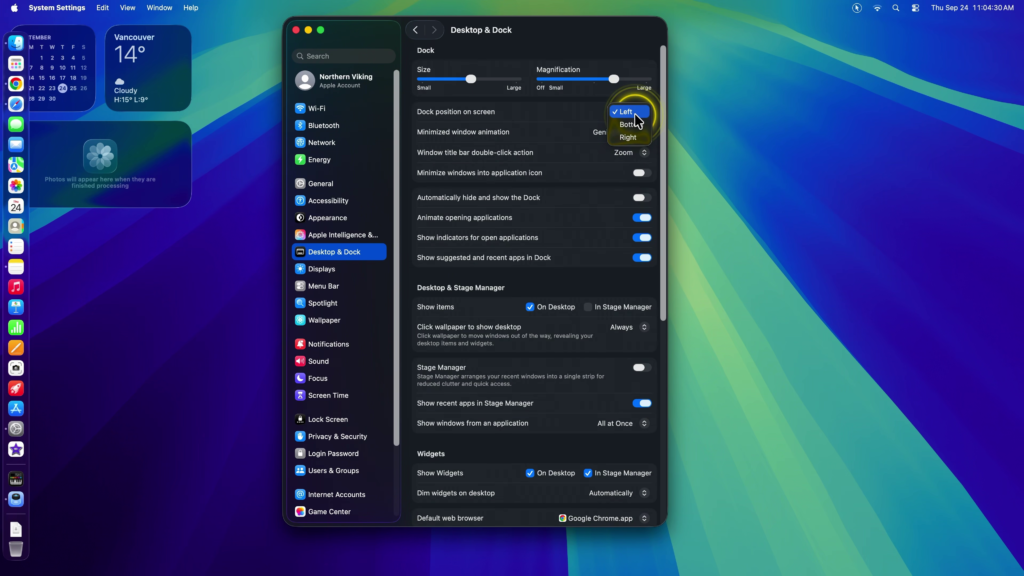
In the System Settings sidebar, scroll down and select Desktop & Dock.
Step 3: Change the Dock Position
Find the Dock position on screen setting. Click the dropdown menu and choose your preferred location:
- Left: Moves the Dock to the left side of your screen.
- Bottom: Returns the Dock to its default position.
- Right: Moves the Dock to the right side of your screen.
Your Mac Dock will immediately move to the selected position.
Step 4: Adjust the Dock Size (Optional)
While you’re in Desktop & Dock settings, you can also use the Size slider to make your Dock smaller or larger.
Simply drag the slider until the Dock is the size you prefer.
✅ Final Thoughts
Moving the Dock on Mac is a quick way to personalize your desktop and make better use of your screen space. Whether you prefer it on the left, right, or bottom, you can easily change its position whenever you like.