Have you accidentally deleted a blog post from your WordPress website? Before you start recreating the entire article, there’s a good chance you can recover it! WordPress has a built-in Trash folder that temporarily stores deleted posts, making it easy to restore them in just a few clicks.
In this tutorial, I’ll show you how to recover a deleted WordPress post, restore it from the Trash folder, and republish it on your website.
🎬 Watch the Video Tutorial
Follow along with my quick step-by-step video showing exactly how to restore a deleted blog post in WordPress.
🗑️ How to Recover a Deleted WordPress Post
If you’ve accidentally deleted a WordPress blog post, follow these simple steps:
- Log in to your WordPress dashboard.
- On the left-hand menu, select Posts > All Posts.
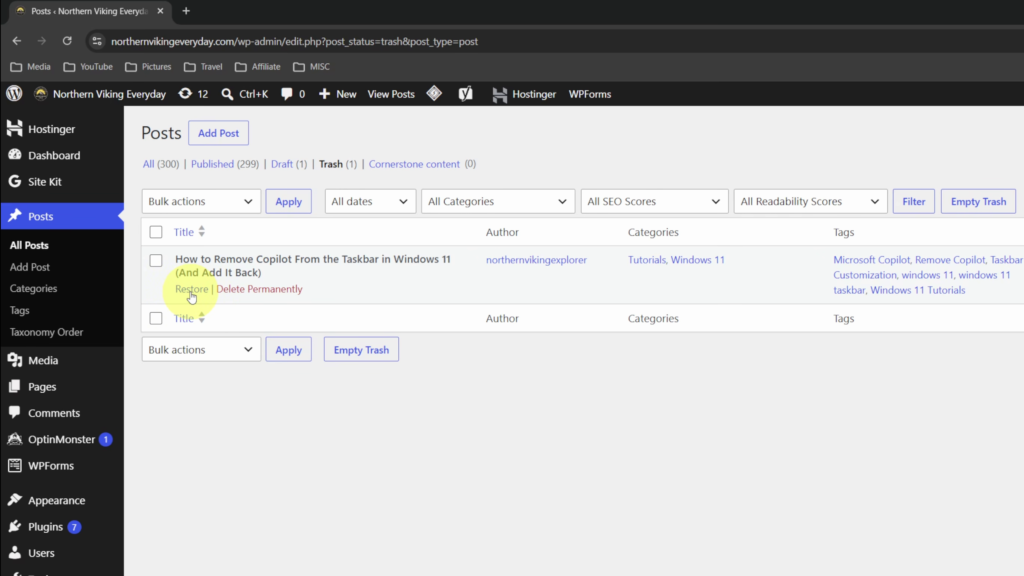
- At the top of the Posts page, click Trash to see your recently deleted blog posts.
- Find the post you want to recover and hover over its title.
- Click Restore underneath the post title. Be careful not to select Delete Permanently.
- Return to All Posts and locate your recovered article.
- If your restored post is listed as a draft, click Edit, review the content, and select Publish to make it live again.
Your deleted WordPress post should now be back on your website without having to recreate it!
⏰ How Long Does WordPress Keep Deleted Posts?
By default, WordPress typically keeps deleted posts in the Trash folder for 30 days before permanently removing them. This period can vary depending on your website’s configuration.
If you’ve accidentally deleted an important blog post, it’s best to restore it as soon as possible.
If the post is no longer in the Trash folder, you may need to check your website backups or contact your hosting provider to see whether recovery is possible.
✅ Final Thoughts
Accidentally deleting a WordPress post doesn’t necessarily mean losing all your hard work. With the built-in Trash folder, you can often recover your article, restore its content, and publish it again in just a few minutes.
For a visual walkthrough of the entire process, watch my YouTube tutorial above!
🔗 Related Tutorials
Since you don’t have many WordPress-specific tutorials yet, I’d use these three related articles about managing websites, browsers, and online content. All three are published on Northern Viking Everyday.