Want more control over your location privacy in Windows 11? Whether you want to prevent certain apps from accessing your precise location or turn off Windows location services completely, you can easily manage these permissions through your Windows settings.
In this quick tutorial, I’ll show you how to disable location services in Windows 11 and customize location permissions for your apps.
🎥 Watch the Video Tutorial
Follow along with my step-by-step video tutorial to learn how to manage your Windows 11 location settings.
⚙️ How to Access Location Settings in Windows 11
- Right-click the Start menu and select Settings.
- Select Privacy & security from the left-hand menu.
- Scroll down to the App permissions section.
- Click Location.
You’ll now see several options for managing location services and app permissions.
📍 How to Manage Location Permissions for Individual Apps
If you want to keep location services enabled but control which apps can access your precise location, follow these steps:
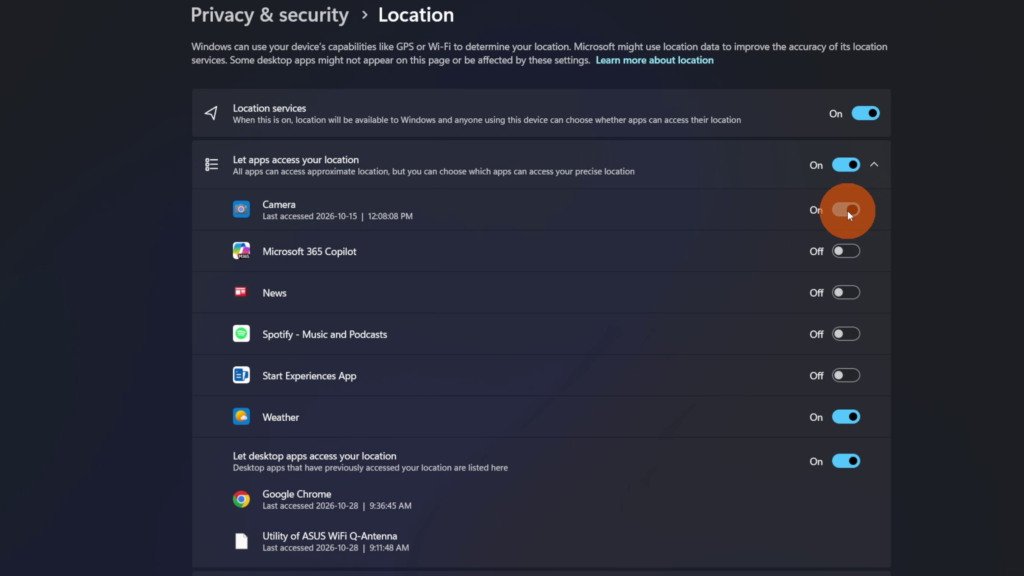
- Make sure Location services is turned on.
- Enable Let apps access your location.
- Find the individual apps you want to manage.
- Use the toggle switches beside each app to enable or disable precise location access.
For example, you might want to disable location access for your Camera app while keeping it enabled for Weather.
You can also scroll down to Let desktop apps access your location to manage location access for desktop applications such as Google Chrome. This setting controls desktop apps as a group rather than individually.
🛑 How to Turn Off Location Services Completely
If you want to disable Windows location services entirely:
- Locate the main Location services toggle at the top of the Location settings page.
- Switch it to Off.
- Click Turn off in the confirmation window.
The location permission settings underneath will become grayed out, and Windows location services will be disabled for everyone using the device.
Important: Turning off location services can make features such as Find my device and automatic time zone settings unavailable. Some apps and websites may still estimate your approximate location using other methods, such as your IP address.
✅ Final Thoughts
Managing location services in Windows 11 is a simple way to gain more control over your privacy. Whether you want to disable location access for specific apps or turn off Windows location services completely, you can easily adjust these settings whenever you like.