Did you know you can watch YouTube in a floating window while working on other tasks? YouTube includes a built-in Picture-in-Picture (PiP) mode that lets you move your video anywhere on your screen so you can continue watching while browsing the web, checking email, or working on other projects.
In this tutorial, I’ll show you how to enable YouTube’s floating window feature without installing any additional software or browser extensions.
What You Will Learn
- 🎥 How to enable Picture-in-Picture mode on YouTube
- 🖱️ The simple double right-click trick to access the PiP menu
- 📺 How to move the floating video window around your screen
- 📏 How to resize the Picture-in-Picture player
- ⏯️ How to pause and play videos from the floating window
- 🔙 How to return the video back to your browser tab
One of the best things about YouTube’s Picture-in-Picture mode is that it is already built into your browser. Simply start playing a YouTube video, right-click on the video twice without moving your mouse, and select Picture in Picture from the menu that appears.
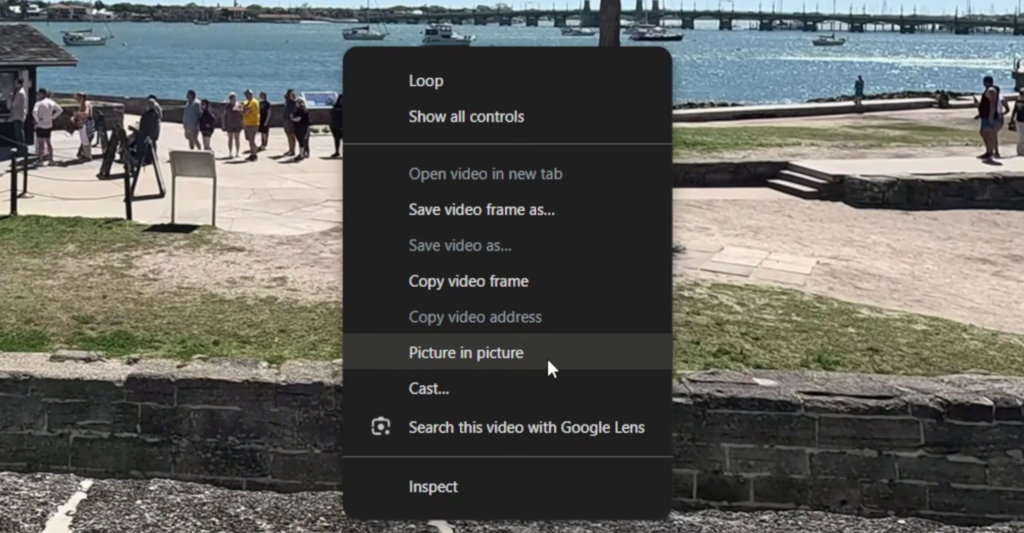
Once enabled, the video will pop out into a floating window that can be moved anywhere on your screen. You can resize the player to make it larger or smaller and continue working on other tasks while keeping your video visible.
This feature is especially useful if you’re following a tutorial, watching educational content, monitoring a livestream, or simply want to stay entertained while multitasking on your computer.
When you’re finished using the floating player, simply click the Back to Tab button in the Picture-in-Picture window to return the video to your browser.
YouTube’s built-in Picture-in-Picture mode is a quick and easy way to improve productivity without installing any Chrome extensions or additional software.
▶️ Watch the full video tutorial here:
https://youtu.be/PYBE9pUDE-Y
Related Tutorials
🔹 How to Enable Google Lens in the Chrome Toolbar
https://northernvikingeveryday.com/how-to-enable-google-lens-chrome-toolbar/
🔹How to Save a Webpage as a PDF in Google Chrome
https://northernvikingeveryday.com/save-webpage-as-pdf-google-chrome/
🔹 How to Change the Default Font in Gmail
https://northernvikingeveryday.com/how-to-change-default-font-in-gmail/
🔹 How to Block Someone on Gmail & Automatically Delete Their Emails
https://northernvikingeveryday.com/block-someone-on-gmail/