Are screenshots cluttering up your Mac desktop? By default, macOS saves every screenshot to your desktop, but you can easily change the save location so screenshots are automatically stored in a folder of your choice.
In this tutorial, I’ll show you how to change the screenshot save location on your Mac to keep your desktop clean and your screenshots organized.
What You Will Learn
- 📸 How to change the screenshot save location on your Mac
- 📂 Where to find the Screenshot app
- ⚙️ How to select a new default save location
- 📁 How to create a new screenshots folder
- ✅ How to automatically organize future screenshots
Step-by-Step Instructions
Step 1: Open the Applications folder and locate the Screenshot app. If you don’t see it, search for Screenshot using the search box.
Step 2: Open the Screenshot app.
Step 3: Select Options to open the save location menu.
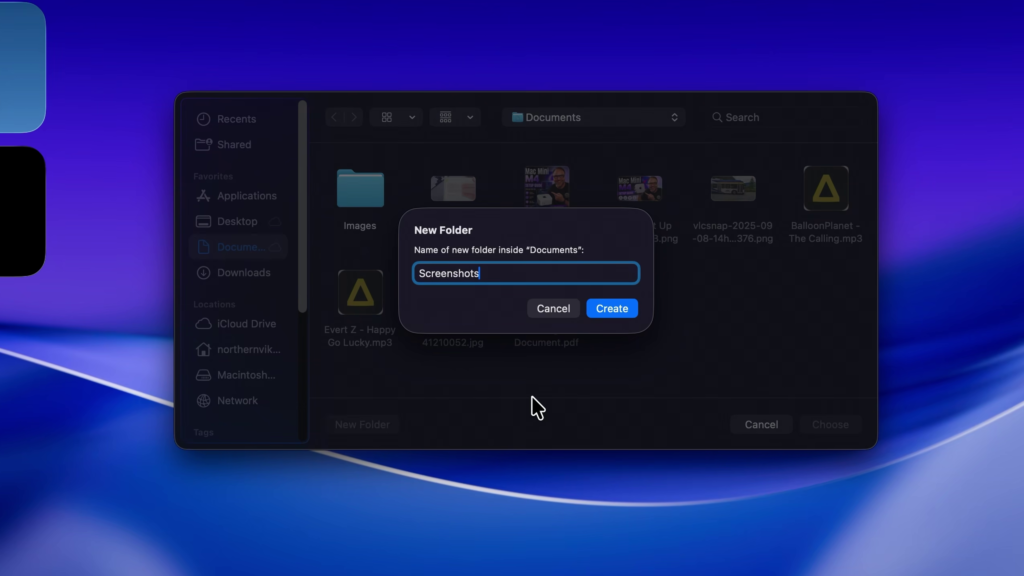
Step 4: Under Save To, choose one of the available locations, or select Other Location to create or choose your own folder.
Step 5: If you’re creating a new folder, select where you’d like to save it, enter a name, then choose Create followed by Choose.
From now on, every screenshot you take will automatically be saved to the folder you selected instead of appearing on your desktop.
▶️ Watch the full tutorial here:
https://youtu.be/Q3_Zf8Fo-8M
Related Tutorials
🔹 How to Check Your Mac Specs
https://northernvikingeveryday.com/check-mac-specs/
🔹 How to Turn Off the Login Password on Mac
https://northernvikingeveryday.com/turn-off-login-password-mac/
🔹 How to Turn On Dark Mode on Mac
https://northernvikingeveryday.com/turn-on-dark-mode-mac/
🔹 How to Make the Menu Bar Always Show on Mac
https://northernvikingeveryday.com/make-menu-bar-always-show-mac/
🔹 How to Change the Default Notification Sound on Mac
https://northernvikingeveryday.com/change-default-notification-sound-mac/