Need to find out what’s inside your Mac? Whether you’re troubleshooting an issue, checking compatibility for software, or simply curious about your system, macOS makes it easy to view important information about your computer.
In this tutorial, I’ll show you how to quickly find your Mac model, Apple chip, memory (RAM), storage space, serial number, warranty information, and macOS version.
What You Will Learn
- 💻 How to check your Mac model
- ⚙️ How to view your Apple chip or processor
- 🧠 How to check installed memory (RAM)
- 💾 How to view available storage space
- 🔢 How to find your serial number
- 🛡️ How to check warranty information
- 🍎 How to view your macOS version
To check your Mac specs, click the Apple logo in the top-left corner of your screen and select About This Mac.
The About This Mac window displays key information about your computer, including your Mac model, Apple chip, memory, serial number, and macOS version.
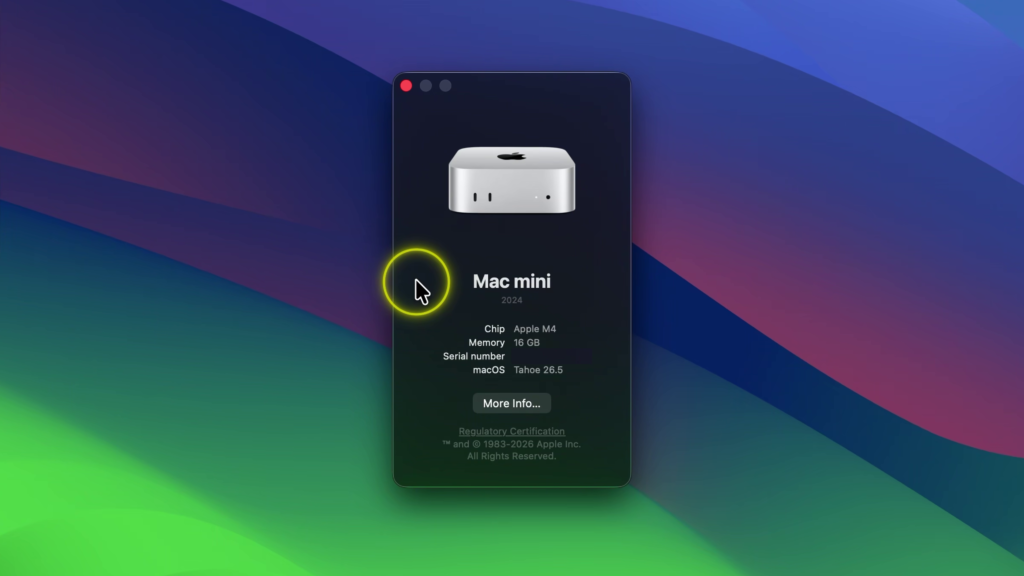
For even more details, click More Info. This screen provides additional system information, including storage usage, display information, warranty coverage, and hardware details.
Whether you’re upgrading software, troubleshooting a problem, or simply learning more about your Mac, this information can be incredibly useful.
▶️ Watch the full tutorial here:
https://youtu.be/FxxGBc8VTTY
Related Tutorials
🔹 How to Turn On Dark Mode on Mac
https://northernvikingeveryday.com/turn-on-dark-mode-mac/
🔹 How to Make the Menu Bar Always Show on Mac
https://northernvikingeveryday.com/make-menu-bar-always-show-mac/
🔹 How to Change Mouse Scroll Direction on Mac
https://northernvikingeveryday.com/change-mouse-scroll-direction-mac/
🔹 How to Set Up the Mac Mini M4
https://northernvikingeveryday.com/how-to-set-up-mac-mini-m4/
🔹 Mac Mini M4 Unboxing – What’s in the Box?
https://northernvikingeveryday.com/mac-mini-m4-unboxing-whats-in-the-box/
🔹 TobenONE Docking Station Review
https://northernvikingeveryday.com/tobenone-uds056-docking-station/