Are you finding the text on your Mac too small and difficult to read? 🔍 Maybe the text in your System Settings, menu bar, and other areas of macOS isn’t quite large enough.
Your Mac includes display settings that let you make text and other on-screen elements larger or smaller. In this tutorial, I’ll show you where to find these settings and how to adjust them.
How to Make Text Bigger on Mac
Step 1: Open System Settings
From your Mac desktop, head to the top-left corner of the screen and click the Apple icon.
Select System Settings from the menu.
Step 2: Open the Display Settings
Once System Settings opens, scroll down and select Displays.
Here you’ll see the different display options available for your Mac.
Step 3: Choose a Display Size
Your Mac may currently be using the Default display setting.
You’ll see several options that allow you to move toward Larger Text or More Space.
Selecting an option toward Larger Text makes text and other on-screen elements appear bigger and easier to read. 🔎
If you select an option toward More Space, everything will appear smaller, allowing more information to fit on the screen.
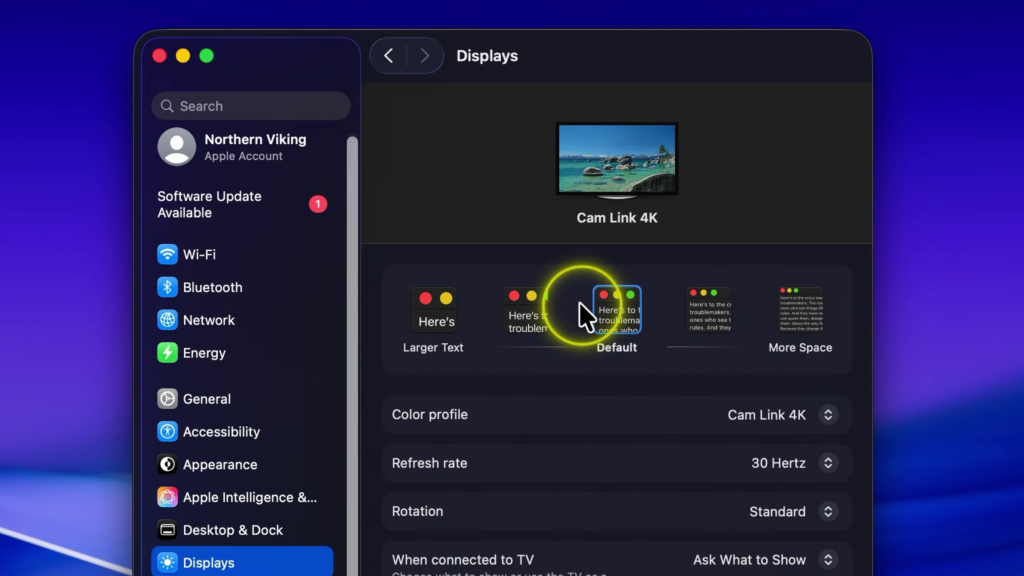
Step 4: Select the Size You Prefer
Click one of the available display options to see how it looks.
If you’re having trouble reading text on your Mac, you can move toward Larger Text. As demonstrated in the video, selecting the largest option can make everything considerably bigger.
If you’d rather fit more information on your screen, move toward More Space, which makes things much smaller.
Choose whichever option works best for you. ✅
What Does the Larger Text Setting Change?
These options adjust your Mac’s display resolution and scaling, which changes the apparent size of text and other on-screen elements.
This can be particularly helpful if you find text in areas such as System Settings or the menu bar difficult to read.
On the other hand, if you prefer having more room on your display, the More Space options can reduce the apparent size of everything so more content fits on the screen. 💻
Watch the Full Tutorial 🎥
Related Mac Tutorials 💻
How to Change Your Homepage in Safari on Mac
https://northernvikingeveryday.com/change-homepage-safari/
How to Show File Extensions on Mac
https://northernvikingeveryday.com/show-file-extensions-mac/
How to Open the Emoji Keyboard on Mac
https://northernvikingeveryday.com/open-emoji-keyboard-mac/
How to Change Your Default Browser on Mac
https://northernvikingeveryday.com/change-default-browser-mac/
How to Change the Screenshot Save Location on Mac
https://northernvikingeveryday.com/change-screenshot-save-location-mac/