Google Chrome now lets you move your open tabs from the top of the browser to a vertical tabs panel on the left side. If you tend to have a lot of websites open at once, this can make your tabs easier to see and access.
In this tutorial, I’ll show you how to turn on Vertical Tabs in Google Chrome, along with how to collapse, expand, and resize the vertical tabs panel.
Watch the video tutorial:
https://youtu.be/MfTHYPwJtbA
How to Turn On Vertical Tabs in Google Chrome
Step 1: Open Google Chrome Settings
Start by opening Google Chrome on your computer.
Click the three-dot menu in the top-right corner of Chrome, then select Settings.
Step 2: Open Appearance
Once your Chrome Settings are open, look at the menu on the left-hand side.
Select Appearance.
Step 3: Find the Tab Position Setting
Under the Appearance settings, look for the Tab position option.
This setting allows you to choose where your open tabs appear in Google Chrome.
Step 4: Switch From Horizontal to Vertical Tabs
Change the Tab position from Horizontal to Vertical.
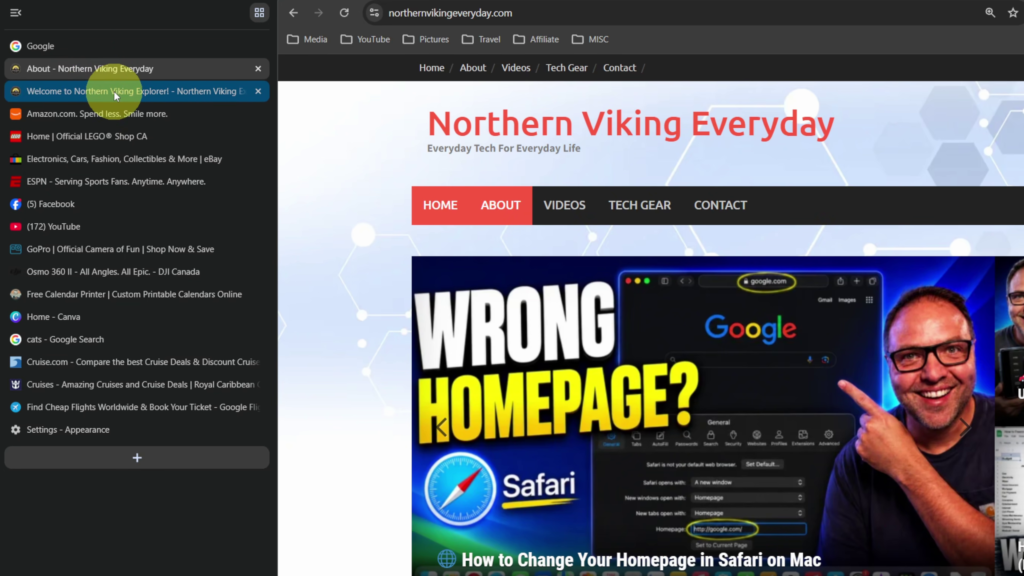
Your open tabs will move from across the top of Google Chrome to a vertical panel along the left side of the browser.
And just like that, Vertical Tabs are turned on. ✅
How to Collapse and Expand Vertical Tabs
Once Vertical Tabs are turned on, you can also change how much room the panel takes up.
You can collapse the vertical tabs panel to make it narrower. This gives the webpage more room while still giving you access to your open tabs.
When you want to see more information about your tabs, you can expand the panel again.
How to Resize the Vertical Tabs Panel
You can also resize the Vertical Tabs area.
Adjusting the width gives you control over how much space your tabs use on the left side of Chrome. If you have a lot of tabs open, making the panel wider can make the tab names easier to read.
If you’d rather have more room for the webpage itself, you can make the panel narrower.
Why Use Vertical Tabs in Chrome?
The biggest difference is simply how your open tabs are organized. Instead of having them spread across the top of the browser, they appear in a list down the left side.
As you can see in the screenshot, this gives you a clear list of your open websites and makes it easy to move between them. 💻
If you decide you prefer the traditional layout, you can return to the Tab position setting and switch back from Vertical to Horizontal.
Watch the Full Tutorial 🎥
How to Turn On Vertical Tabs in Google Chrome
https://youtu.be/MfTHYPwJtbA
Related Google Chrome Tutorials 💻
How to Search YouTube Videos with Google Lens (Secret Chrome Trick)
https://northernvikingeveryday.com/search-youtube-videos-google-lens/
How to Save a Webpage as a PDF in Google Chrome
https://northernvikingeveryday.com/save-webpage-as-pdf-google-chrome/
How to Add a Google Translate Button to Your Chrome Toolbar
https://northernvikingeveryday.com/how-to-add-google-translate-button-chrome/
How to Search Any Image in Chrome with the Google Lens Shortcut
https://northernvikingeveryday.com/how-to-enable-google-lens-chrome-toolbar/
2 thoughts on “How to Turn On Vertical Tabs in Google Chrome”
Comments are closed.