Getting your desktop workspace ready is exciting, and setting up the redesigned Apple Mac Mini M4 is a quick and straightforward process. This guide covers everything from plugging in your hardware to completing the initial macOS configuration.
You can watch the full video tutorial from Northern Viking Everyday right here:
Step 1: Physical Connections & Hardware 🔌
The M4 chassis features a redesigned layout that makes accessing ports highly convenient. Before turning the machine on, connect your essential peripherals.
Front Layout:
- 2x USB-C Ports: Perfect for quickly plugging in your keyboard, mouse, or external storage drives.
- 3.5mm Headphone Jack: Conveniently placed for wired headphones or desktop speakers.
Rear Layout:
- 3x Thunderbolt / USB-C Ports: High-speed connections for displays or fast external hardware.
- 1x HDMI Port: A standard display connection to easily plug directly into your monitor or TV.
- 1x Ethernet Port: For a fast, stable wired internet connection.
- Power Connection Port: Located cleanly on the back to keep cables tucked away.
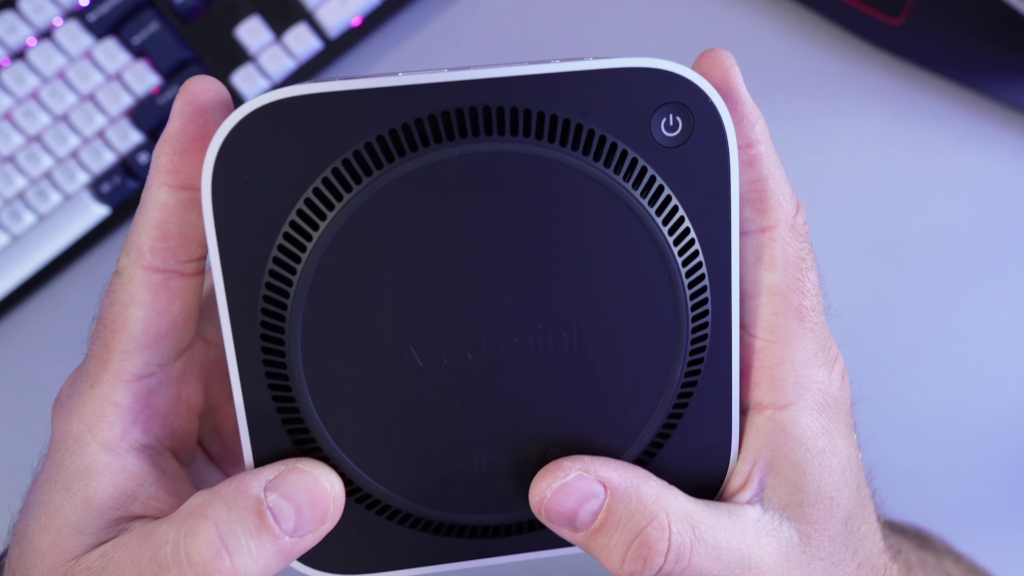
💡 Where is the power button? Apple moved the physical power button to the bottom of the unit on the rear-left corner. Just tilt the unit up slightly to press it when you are ready to boot up! If your current accessories use older USB-A connectors, a simple USB-C to USB-A hub or adapter plugged into the back will give you all the standard ports you need.
Step 2: Connecting Your Display, Keyboard, and Mouse ⌨️
To navigate the setup, connect your inputs and screen before turning on the machine:
- Monitors: Connect your screen using a standard HDMI cable or a Thunderbolt cable, depending on your monitor’s available inputs.
- Keyboards & Mice: If using a wired connection, plug them directly into the front USB-C ports. If you are using Bluetooth peripherals, make sure they are turned on and in pairing mode. The Mac will scan for them immediately upon booting up.
Step 3: On-Screen macOS Software Walkthrough ⚙️
Once you press the hidden power button on the bottom of the unit, the screen will light up with the classic Apple “Hello” setup assistant. Follow these quick steps to finish configuring your machine:
- Language & Region: Select your local preferences.
- Transfer Data: You can choose to migrate data from an old Mac or Windows PC. To start fresh, choose to set it up as a brand new machine.
- Wi-Fi Network: Select your local network and enter the password (or bypass this step if you plugged in an Ethernet cable).
- Create a Computer Account: Choose an avatar, input your username, and create a secure login password for the machine.
- Apple Account: Sign in with your existing Apple credentials, or create a new Apple account on the screen using your email and phone verification.
- System Preferences: Choose your preferred system appearance (Light Mode, Dark Mode, or Auto) and finalize your automatic update preferences.
Once complete, you will be taken directly to your clean macOS desktop, fully ready for use! 🎉
🛒 Buy Mac Mini & Accessories (Affiliate Links)
Looking to upgrade your workstation or grab the exact gear featured in this tutorial? Check out the links below: