Are your video audio levels all over the place? 🔊 It is an incredibly common problem, especially if you are filming with different cameras and microphones. One minute your voice is perfectly clear, and the next clip is so quiet your viewers have to crank their volume up, or worse, it is so loud it distorts.
Thankfully, you don’t have to guess your volume levels anymore. DaVinci Resolve has a built-in tool that lets you automatically balance your audio to hit the exact professional standards required by YouTube.
Here is how to do it in just a few quick clicks! 🛠️
Step 1: Select Your Audio Clips
Open your project in DaVinci Resolve and head over to the Edit tab. Look at your timeline to identify the clips that need adjusting.
You can normalize your clips one by one, or save time by doing them all at once. To do them together, simply click and drag to highlight all the clips in your timeline. You will know they are selected when a red box appears around them.
Step 2: Open the Normalize Menu
With your clips highlighted, right-click on the selected audio area. In the context menu that pops up, look down toward the middle and click on Normalize Audio Levels.
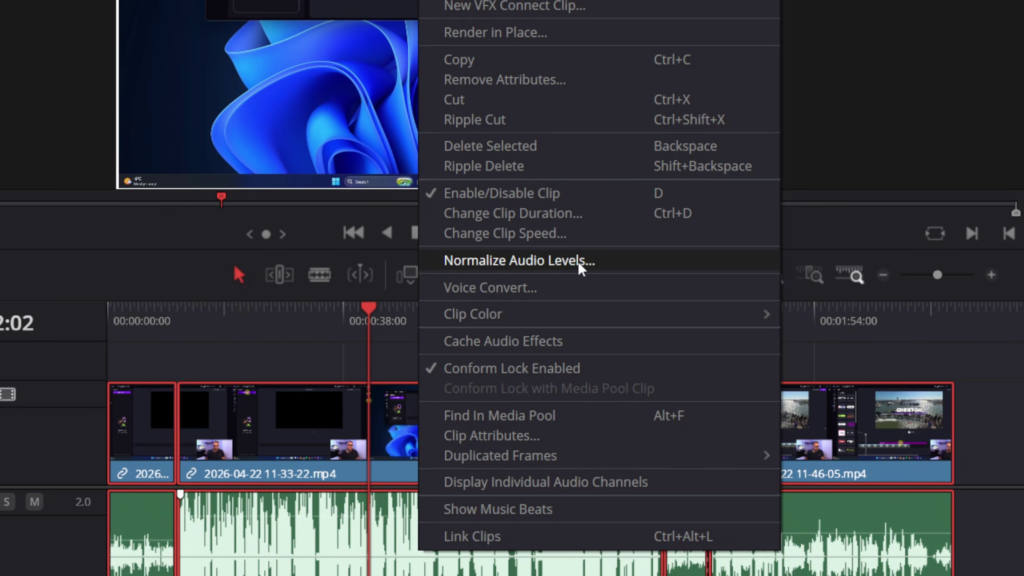
Step 3: Choose the YouTube Preset
A new settings window will appear with a dropdown menu labeled Normalization Mode. Click that dropdown and select YouTube from the list.
Choosing this automatically programs the official YouTube audio specifications right into the system:
- Target Level (-1 dB): This is your true peak safety ceiling. It keeps your audio crisp and ensures it never peaks or distorts.
- Target Loudness (-14 LUFS): This is the average volume standard that YouTube uses across its entire platform so your video matches professional standards.
Step 4: Set to “Independent” and Normalize
At the bottom of the window, you will see two options: Relative and Independent.
While Relative looks at the entire timeline as a single batch, it is usually best to select Independent. This forces DaVinci Resolve to look at each individual clip on its own merit and bring it up or down to hit that perfect -14 LUFS target.
Once selected, click Normalize. You will instantly see the audio waveforms in your timeline shift up or down to a beautifully balanced level! 🎚️
The Final Touch
While the automatic tool is incredibly accurate, it is always a good practice to listen through your timeline transitions before exporting. If a clip sounds just a tiny bit off, you can manually adjust it slightly, but the heavy lifting is already done.
Once your transitions sound smooth, your audio is officially locked into the YouTube spec and you are ready to export! 🚀
Watch the Full Video Tutorial
Want to see exactly how these waveforms change in real-time? Check out the full step-by-step video guide below:
🔗 Watch the video here: https://youtu.be/HSWdMz3Iwpc