Can’t see file extensions in Windows 11? By default, File Explorer hides extensions, making it difficult to tell the difference between file types. Fortunately, you can enable file extensions in just a few clicks.
In this tutorial, I’ll show you how to display file extensions in Windows 11 so you can easily identify PDFs, JPGs, PNGs, MP4s, and other file types.
What You Will Learn
- 📁 How to display file extensions in Windows 11
- ⚙️ Where to find the File Explorer settings
- 🖥️ How to turn the Show file extensions option on
- 📄 How to identify different file types more easily
- ✅ How to turn file extensions off again if needed
Step-by-Step Instructions
Step 1: Open Settings by right-clicking the Start button and selecting Settings.
Step 2: In the Settings window, select System from the menu on the left.
Step 3: Select Advanced, then choose File Explorer.
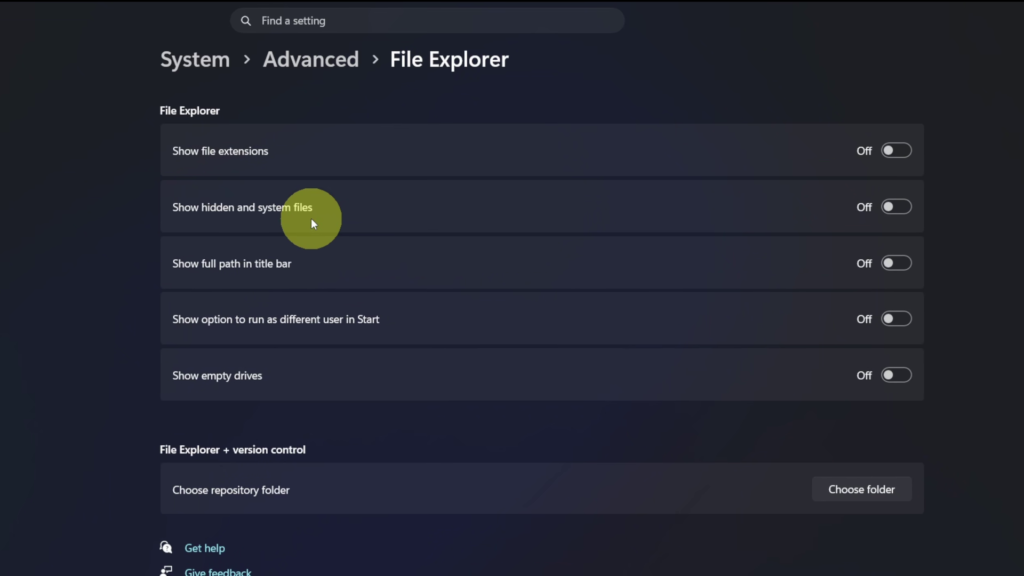
Step 4: Turn on the Show file extensions toggle.
Step 5: Open File Explorer to see the file extensions displayed after each filename, including PDF, PNG, JPEG, MP4, and other file types.
If you ever want to hide file extensions again, simply return to the same setting and turn the toggle off.
▶️ Watch the full tutorial here:
https://youtu.be/0D8AhlYI5Ik
Related Tutorials
🔹 How to Add the Settings Icon Next to the Power Button in Windows 11
https://northernvikingeveryday.com/add-settings-icon-next-to-power-button-windows-11/
🔹 How to Change the Mouse Pointer Color in Windows 11
https://northernvikingeveryday.com/change-mouse-pointer-color-windows-11/
🔹 How to Remove PDF Pages in Windows 11
https://northernvikingeveryday.com/remove-pdf-pages-windows-11/
🔹 How to Extract Audio from Video FREE in Windows 11
https://northernvikingeveryday.com/extract-audio-from-video-windows-11/