Want faster access to your Windows 11 settings? You can customize the Start menu to add a Settings shortcut next to the power button, making it easier to open your system settings whenever you need them.
In this tutorial, I’ll show you exactly how to enable the Settings icon using the built-in Start menu customization options.
What You Will Learn
- ⚙️ How to add the Settings icon next to the power button
- 🖥️ Where to find the Start menu customization settings
- 📂 How to access the Folders settings in Windows 11
- 🔵 How to enable the Settings shortcut
- ✅ How to verify the icon appears in your Start menu
Step-by-Step Instructions
Step 1: Open the Start menu, then select Settings.
Step 2: In the Settings window, select Personalization from the menu on the left.
Step 3: Select Start, then choose Folders.
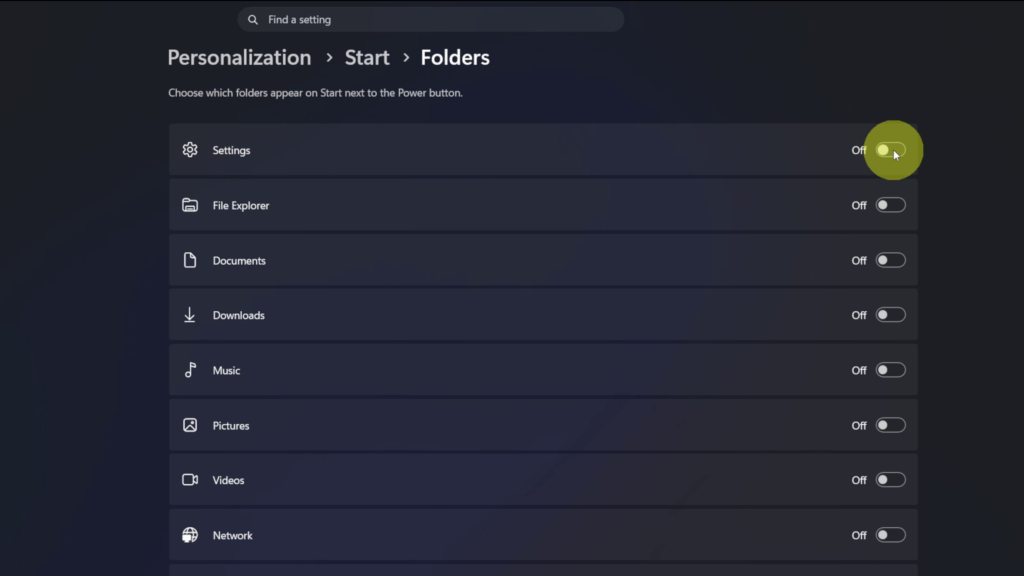
Step 4: Locate the Settings option in the list and turn the toggle On.
Step 5: Close the Settings window and open the Start menu again. You’ll now see the Settings icon next to the power button for quick access.
▶️ Watch the full tutorial here:
https://youtu.be/fbVlLnGpNTg
Related Tutorials
🔹 How to Change the Mouse Pointer Color in Windows 11
https://northernvikingeveryday.com/change-mouse-pointer-color-windows-11/
🔹 How to Turn On Fast Startup in Windows 11
https://northernvikingeveryday.com/turn-on-fast-startup-windows-11/
🔹 How to Remove PDF Pages in Windows 11
https://northernvikingeveryday.com/remove-pdf-pages-windows-11/
🔹 How to Extract Audio from Video FREE in Windows 11
https://northernvikingeveryday.com/extract-audio-from-video-windows-11/
🔹 How to Combine Videos in Windows 11 for FREE
https://northernvikingeveryday.com/how-to-combine-videos-windows-11-free/