Do you ever have programs or apps that freeze in Windows 11 and you just want to close them quickly? By default, Windows 11 doesn’t include an End Task option when you right-click an app on the taskbar. Fortunately, there’s a hidden setting that allows you to enable this feature. ⚡
Once it’s turned on, you’ll be able to close unresponsive apps directly from the taskbar without opening Task Manager. In this tutorial, I’ll show you exactly how to enable the End Task option in Windows 11.
How to Enable End Task on the Taskbar in Windows 11
Enabling the End Task feature only takes a few clicks in the Windows settings menu.
Step 1: Open Windows Settings
Right-click the Start button and select Settings.
I find this to be the easiest way to access the Windows settings menu.
Step 2: Select System
Once the Settings window opens, select System from the menu on the left-hand side.
Step 3: Open Advanced Settings
Scroll down until you see Advanced in the middle of the page, then select it.
Step 4: Turn On the End Task Feature
At the top of the Advanced page, you’ll see End Task with the description Enable End Task in the taskbar by right-clicking.
Turn the toggle switch On until it turns blue. 🔵
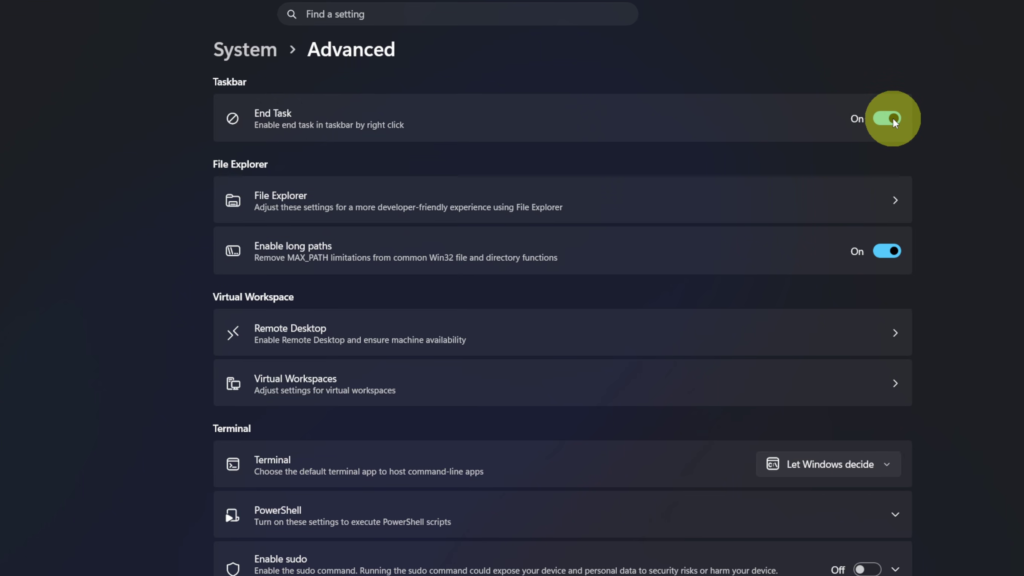
Step 5: Right-Click an App on the Taskbar
Close the Settings window and return to one of your applications on the taskbar.
Right-click the application, and you’ll now see the End Task option at the bottom of the menu. Selecting it will immediately close the application. 💻
Why Enable the End Task Feature?
The End Task feature gives you a much faster way to close frozen applications.
Instead of opening Task Manager and searching for an unresponsive program, you can simply right-click the application’s icon on the taskbar and close it immediately. 🚀
If you frequently work with multiple programs or occasionally encounter frozen apps, this is a useful Windows 11 feature to enable.
Watch the Full Tutorial 🎥
If you’d like to see the entire process step by step, watch the full video tutorial below: https://youtu.be/19L2xpg6cYc
Once you’ve enabled the End Task feature, you’ll be able to close frozen applications directly from your taskbar with a simple right-click, saving you time whenever a program stops responding.
Related Windows 11 Tutorials 💻
- Add Documents Shortcut in Windows 11
https://northernvikingeveryday.com/add-documents-shortcut-windows-11/ - Show File Extensions in Windows 11
https://northernvikingeveryday.com/show-file-extensions-windows-11/ - Extract Audio From a Video in Windows 11
https://northernvikingeveryday.com/extract-audio-from-video-windows-11/ - Change Mouse Pointer Color in Windows 11
https://northernvikingeveryday.com/change-mouse-pointer-color-windows-11/