Did you know that Google Chrome includes a hidden Google Lens feature that lets you search objects, landmarks, clothing, and more directly from a paused YouTube video? Best of all, you don’t need to install any extensions or extra software.
In this tutorial, I’ll show you exactly how to use Search this video with Google Lens to identify items you see while watching YouTube videos.
What You Will Learn
- 🔍 How to search a YouTube video with Google Lens
- 🖱️ How to open the hidden Chrome menu with a double right-click
- 📷 How to highlight an object using Google Lens
- 🌎 How to view AI, visual, and exact search results
Start by opening a YouTube video in Google Chrome and pause it on the object you would like to search.
Next, right-click twice without moving your mouse. The first right-click opens YouTube’s menu. The second opens Google Chrome’s built-in browser menu.
From the Chrome menu, select Search this video with Google Lens.
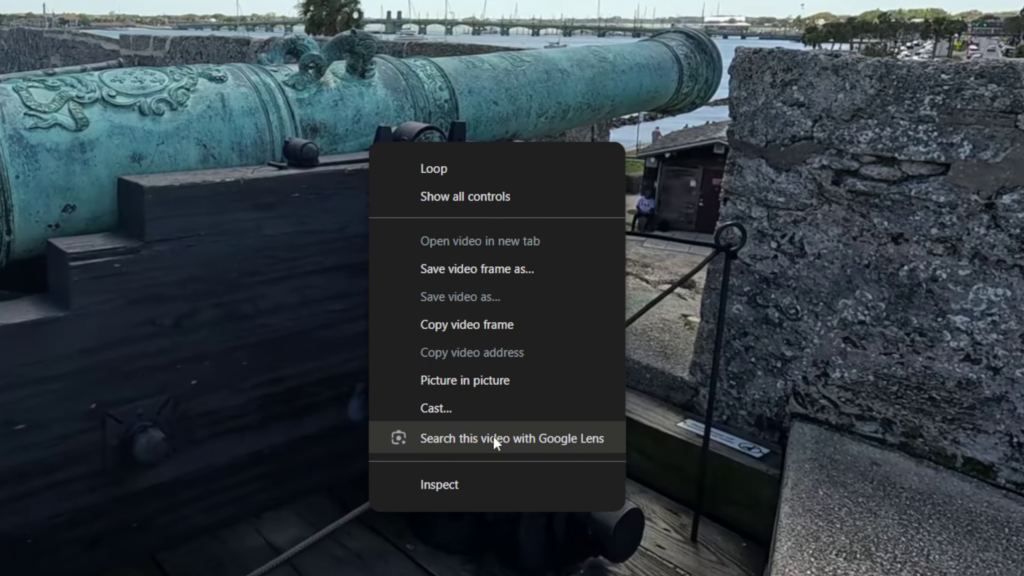
After selecting Google Lens, simply click and drag around the object you want to identify. Google Lens immediately begins searching and displays AI results, visual matches, exact matches, and related web information in the side panel.
In my example, I searched a historic cannon shown in a YouTube video. Google Lens correctly identified it as a cannon located in St. Augustine, Florida.
This hidden Chrome feature is a quick and easy way to learn more about places, products, landmarks, and objects you discover while watching YouTube.
▶️ Watch the full tutorial here:
https://youtu.be/UZijeDwrD9g
Related Tutorials
🔹 How to Watch YouTube in a Floating Window (Picture in Picture)
https://northernvikingeveryday.com/watch-youtube-in-a-floating-window/
🔹 How to Save a Webpage as a PDF in Google Chrome
https://northernvikingeveryday.com/save-webpage-as-pdf-google-chrome/
🔹 How to Enable Google Lens in the Chrome Toolbar
https://northernvikingeveryday.com/how-to-enable-google-lens-chrome-toolbar/
🔹 How to Check Your Mac Specs
https://northernvikingeveryday.com/check-mac-specs/