Is your Windows 11 PC taking forever to load every time you hit the power button? 😴 If you want to get to your desktop faster and improve your overall performance, there is one “hidden” setting you definitely need to check! ⚡
In this guide, we are diving into Fast Startup. Microsoft recommends this feature to help your PC start up much quicker after a full shutdown. 📉💨
Check out the full video tutorial below, or follow our step-by-step breakdown to optimize your system today! 🎥👇
Watch the Tutorial: How to Turn On Fast Startup in Windows 11 🔗
Step-by-Step: Enabling Fast Startup in Windows 11 🛠️
Following these steps will ensure your hardware is ready to go the moment you need it! ✅
1. Open the Control Panel 🔍
Head down to your Search bar at the bottom of your screen and type in “Control Panel.” Click on the best match to open it up. 🖱️
2. Navigate to Power Options 🔌
Inside the Control Panel, look for the Hardware and Sound section and click it. From there, select Power Options to view your system’s energy settings. 🔋
3. Choose Power Button Functions 🔘
On the left-hand side of the window, you will see an option that says “Choose what the power buttons do.” Click that to load the specific shutdown settings. 📄
4. Unlock the Settings 🔓
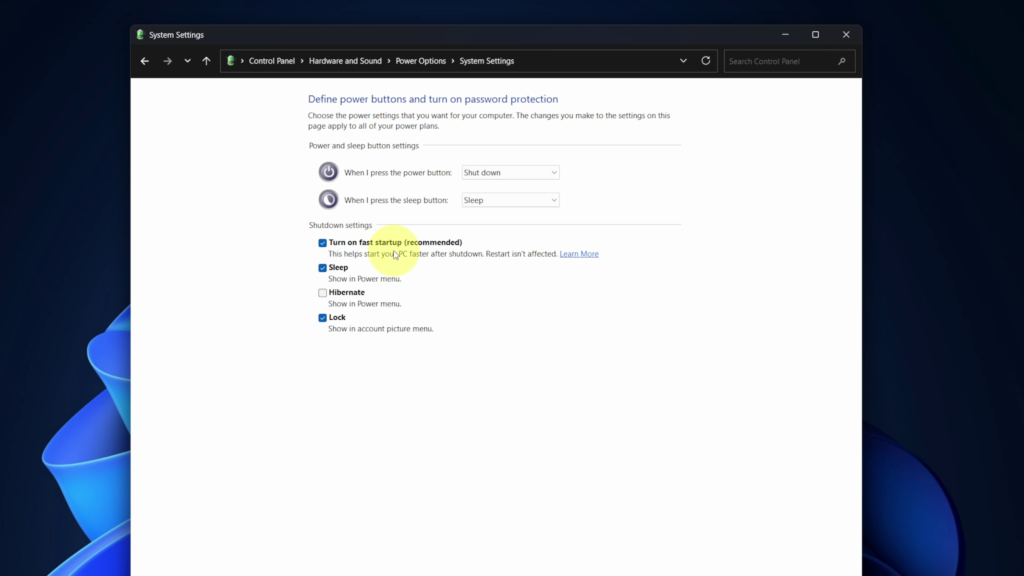
You might notice that the “Turn on fast startup” checkbox is grayed out and unclickable. To fix this, click the link at the top that says “Change settings that are currently unavailable.” (You may need admin permission for this). 🔑
5. Enable and Save 💾
Now that the options are unlocked, make sure the box next to “Turn on fast startup (recommended)” is checked. 🗳️
Important: Don’t just close the window! Scroll to the bottom and click Save changes to ensure the setting sticks. 📥✨
Why Use Fast Startup? 🤔
By enabling this, Windows saves a fragment of your system state to the hard drive during shutdown. When you turn the PC back on, it uses that “snapshot” to skip the heavy lifting, resulting in a much faster boot time! 🚀💻
If this tutorial helped you get back to work (or play) faster, make sure to subscribe to Northern Viking Everyday for more Windows 11 tips and tricks! 🎬🔔